
Regional Keyboard Layouts: A Beginner's Guide
[ Back to Mechanical Keyboards 101 ]Using a keyboard from another country can be confusing due to differences in layout. Regional keyboard layouts are designed to accommodate specific languages and typing needs by rearranging keys, adding symbols, or modifying key functions. Here's what you need to know:
- Layout Basics: Keyboards differ in physical design (ANSI, ISO, JIS) and key arrangement (QWERTY, AZERTY, QWERTZ, etc.).
- Why They Exist: Languages like Spanish, German, and Japanese require unique characters (e.g., Ñ, Ü, or Kanji).
- Who Benefits: Multilingual users, programmers, and custom keyboard enthusiasts often rely on specific layouts.
- Key Differences: ANSI has a wide Enter key, ISO uses an L-shaped Enter key, and JIS includes extra language keys.
- Customization Challenges: ISO and JIS users often face limited keycap options and higher costs.
Understanding these differences is essential for choosing the right keyboard for your needs, especially if you’re building or customizing mechanical keyboards.
Overview of Global Keyboard Layout Families
Major Layout Families and Their Regions
Keyboards around the world are designed to meet the specific linguistic and practical needs of their regions, and most fall into a few major layout families.
The QWERTY layout is the most widely used globally. In North America, Australia, and many parts of Asia and Africa, the US version (following the ANSI standard) is standard. Meanwhile, the UK version (based on the ISO standard) has slight variations, such as including a dedicated £ key. In Central Europe, the QWERTZ layout is prevalent, especially in Germany, Austria, and Switzerland. This layout swaps the Y and Z keys and includes special keys for umlaut characters like ä, ö, and ü. Over in France and Belgium, the AZERTY layout is the default, with notable differences in key placement compared to QWERTY.
Outside Europe, Japan uses the JIS layout, which is tailored for Japanese input with additional keys to switch between Hiragana, Katakana, and Kanji. South Korea relies on the KS layout, which features dedicated keys for language input near the space bar. Other regions, such as those using Arabic or Cyrillic scripts, have layouts designed specifically for their non-Latin alphabets. Brazil, on the other hand, uses the ABNT2 standard, which includes extra keys and a dedicated Ç key to accommodate the Portuguese language.
These layout variations naturally lead to differences in physical keyboard standards.
Comparing Regional Standards
Regional layouts are further defined by physical standards, which determine the shape and arrangement of keys.
"ANSI stands for the American National Standards Institute, and it defines the layout most commonly used in the United States, Canada, and the Asia-Pacific region." - Logitech
One of the key differences between these standards is the shape of the Enter key. ANSI keyboards feature a wide, horizontal Enter key, while ISO keyboards use a tall, L-shaped Enter key. JIS keyboards also have a tall Enter key but include extra keys near the space bar for language switching. These physical distinctions are critical when choosing keycaps or building custom keyboards, as ANSI and ISO keycaps are not usually interchangeable.
| Physical Standard | Common Regions | Full-Size Key Count | Defining Feature |
|---|---|---|---|
| ANSI | US, Canada, Australia | 104 keys | Wide, horizontal Enter; long left Shift |
| ISO | UK, Europe, Latin America | 105 keys | L-shaped Enter; shorter left Shift with an extra key |
| JIS | Japan | 109 keys | Tall Enter; compact space bar; extra language keys |
| ABNT2 | Brazil | 107 keys | ISO-style Enter; dedicated Ç key; extra right Shift key |
Interestingly, many regional layouts like AZERTY and QWERTZ are built on the ISO standard. For instance, a "German keyboard" typically refers to a QWERTZ layout on an ISO frame. Understanding the difference between physical standards and functional layouts is crucial, especially when shopping for compatible parts or customizing a mechanical keyboard.
This foundation of physical standards paves the way for a deeper dive into layout compatibility in the world of custom mechanical keyboards.
sbb-itb-3cb9615
The Challenge of Making a Keyboard for Every Language
Key Placement and Regional Differences
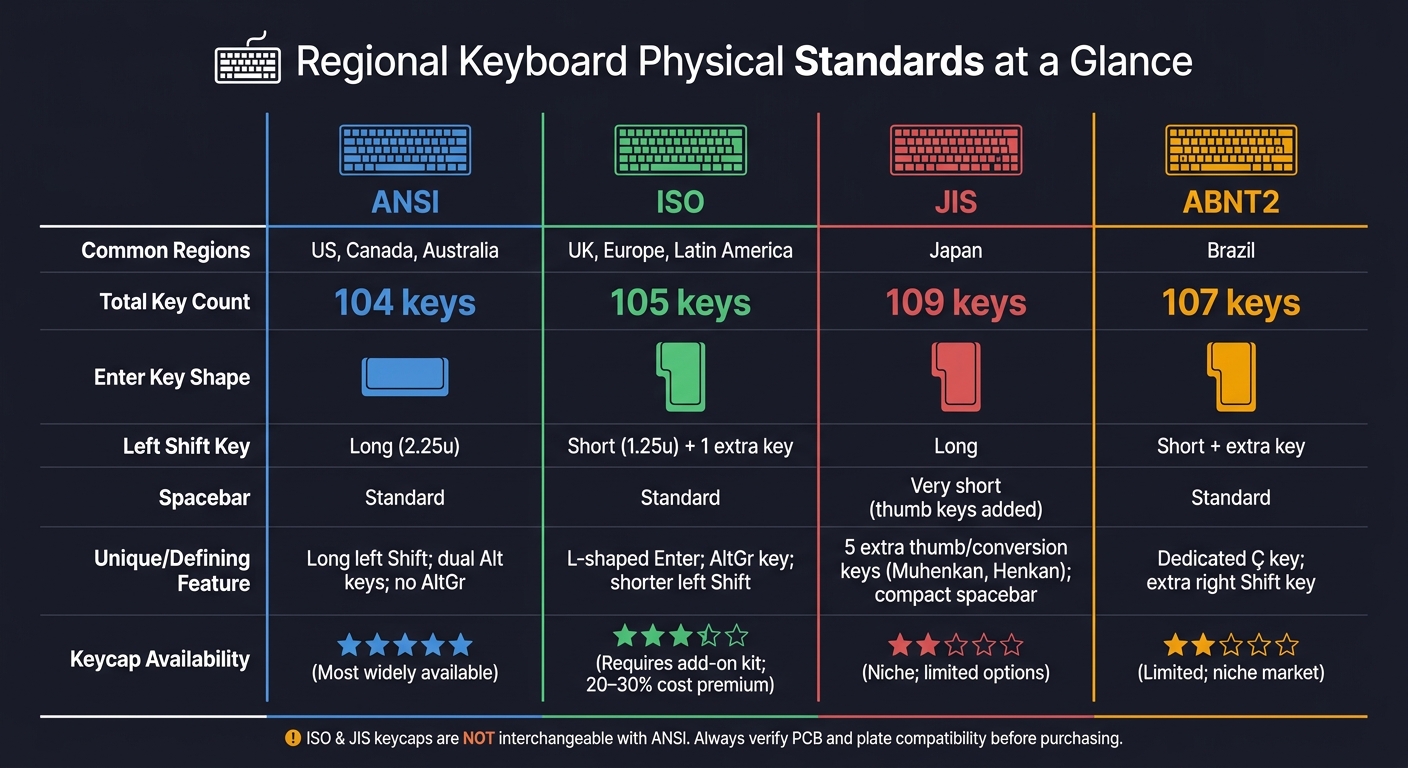
ANSI vs ISO vs JIS vs ABNT2: Regional Keyboard Standards Compared
ANSI, ISO, and JIS: Physical Standards Explained
Let’s take a closer look at how key placements vary across keyboard standards. While we’ve already touched on layout differences, this section dives into the practical details that influence usability and customization.
Enter Key: On ANSI keyboards, the Enter key is a wide horizontal rectangle. In contrast, both ISO and JIS keyboards use a tall, L-shaped Enter key that spans two rows. This design alters the placement of nearby keys, such as Backslash and Return.
Left Shift Key: ANSI keyboards feature a long Left Shift key (2.25u). However, ISO keyboards shorten this key (1.25u) to make room for an additional symbol key on its right. This can be helpful for multilingual users but may take some getting used to for those familiar with ANSI layouts.
Spacebar: JIS keyboards shrink the spacebar significantly to add thumb keys for toggling between Hiragana, Katakana, and Kanji. As a result, a full-size JIS keyboard typically includes 109 keys - five more than the standard 104-key ANSI layout and four more than the 105-key ISO layout.
Here’s a quick comparison:
| Feature | ANSI | ISO | JIS |
|---|---|---|---|
| Enter Key | Horizontal rectangle | Tall, L-shaped | Tall, L-shaped |
| Left Shift | Long (2.25u) | Short (1.25u) | Long |
| Spacebar | Standard | Standard | Very short |
| Extra Keys | None | 1 (next to Left Shift) | 5 (thumb/conversion keys) |
Character Placement Differences Across Major Layouts
Even QWERTY keyboards can differ significantly depending on the region. For example, the US layout (ANSI standard) arranges symbols in one way, while the UK layout (ISO standard) shifts several keys to include the £ sign and allows access to the € symbol via AltGr.
Other regional layouts take this customization even further:
- AZERTY (used in France and Belgium): The number row requires the Shift key to type digits, and letters like A, Z, Q, and W are rearranged.
- QWERTZ (common in Germany, Austria, and Switzerland): The Y and Z keys are swapped, and additional keys are included for characters like ä, ö, and ü.
- Spanish Layout: Adds a dedicated Ñ key and includes inverted punctuation marks (¿ and ¡), which are essential in Spanish writing.
- Brazilian ABNT2: Based on the ISO layout, this design includes a Ç key and an extra key to the right of the Right Shift, making it easier to type in Portuguese.
These differences in character placement highlight how regional needs shape keyboard designs.
Modifier and Function Key Differences by Region
Beyond character placement, modifier keys like Alt and AltGr introduce another layer of regional variation. ISO layouts replace the right Alt key with AltGr (short for Alt Graph), which unlocks a third layer of characters, such as accented letters and currency symbols. This feature eliminates the need for extra physical keys. ANSI keyboards, on the other hand, include two identical Alt keys and lack an AltGr option, which is why ISO layouts are often preferred by multilingual users.
"The Alt Graph key on ISO layouts transforms your keyboard into a multilingual typing tool." - Gerald Mueller
JIS keyboards take a different approach, incorporating conversion keys like Muhenkan (no conversion) and Henkan (convert to Kanji) to switch between Japanese input modes - features not found on Western keyboards.
For programmers, the US ANSI layout offers practical advantages. Keys for symbols like \, |, [, and ] are placed conveniently within reach. On many ISO layouts, these symbols require AltGr combinations, which can slow down coding workflows.
These regional design choices play a major role in how users interact with their keyboards and even influence the customization of mechanical keyboard builds. For those new to the hobby, our mechanical keyboards 101 guide provides a solid foundation.
Regional Layouts in Custom Mechanical Keyboards
Plates and PCBs: Layout Compatibility
When customizing a mechanical keyboard, ensuring that your regional layout matches the PCB and plate design is crucial. For instance, a PCB tailored for ANSI layouts will have switch sockets positioned to accommodate a wide, horizontal Enter key. On the other hand, the ISO layout features a taller, L-shaped Enter key, requiring different solder pads or hotswap socket placements. If an ISO PCB is paired with an ANSI plate, the switch cutouts simply won't align, making the build incompatible.
Some PCBs are designed with universal support, offering extra mounting holes to accommodate both ANSI and ISO configurations. These are a great option if you need flexibility. However, JIS support is rarely included, even in these universal designs. The JIS layout, with its shorter spacebar and additional thumb keys, remains a niche choice in the custom keyboard world.
"Recognizing these regional standards prevents users from purchasing incompatible aftermarket keycaps." - Deskthority
Always double-check compatibility when purchasing kits. Even "universal" designs may not cover every regional standard.
Keycap Set Availability for Regional Layouts
Sourcing keycaps for regional layouts can be a challenge for custom builds. Most custom keycap base kits are designed for ANSI layouts, leaving ISO and JIS users to purchase additional kits for the correct key shapes and legends.
For ISO users, this typically means buying an "International", "Norde", or "ISO" add-on kit alongside the base kit. These add-ons include essentials like the L-shaped Enter key, the shorter Left Shift, and region-specific legends for layouts such as ISO-UK, German DE, or French AZERTY. Unfortunately, this often adds a 20%–30% cost premium to the overall price.
If you're planning a European layout, pay close attention to the product descriptions and kit breakdowns before making a purchase. A base kit alone won't provide the keys you need. Your keyboard's form factor will also influence your keycap options and layout compatibility.
Form Factors and Regional Layout Support
The keyboard's form factor plays a significant role in determining compatibility with regional layouts. Larger boards, like full-size and Tenkeyless (TKL) models, are the most accommodating for ISO and ANSI layouts, as they include all the physical keys required by these standards.
Smaller form factors, however, create additional challenges. A 60% keyboard, for instance, eliminates the function row and navigation cluster entirely. This can leave regional characters - like the extra symbol key next to the ISO Left Shift - without a dedicated key. To work around this, users often rely on firmware tools like QMK or VIA to map these characters to secondary layers.
Among enthusiasts, the 75% layout has become the go-to choice in 2026. It strikes a balance by retaining a dedicated function row and navigation keys while maintaining a compact footprint. This makes it a practical option for those who want regional layout support without the bulk of a full-size keyboard. A great example is KeebsForAll's Freebird75, a hotswappable 75% kit designed with multi-layout support, making it an excellent entry point for beginners exploring regional builds.
| Form Factor | Key Count | Regional Layout Notes |
|---|---|---|
| Full-Size (100%) | 104 (ANSI) / 105 (ISO) | Fully supports regional layouts; ideal for compatibility |
| Tenkeyless (TKL) | 87 (ANSI) / 88 (ISO) | Removes the numpad but still works well with ISO and ANSI |
| 75% | 80–84 | Popular among enthusiasts; keeps F-row and navigation keys in a compact design |
| 65% | 67–68 | Includes arrow keys but offers limited support for regional layouts |
| 60% | ~61 | Requires firmware layers to accommodate regional characters |
How to Choose the Right Regional Layout
Steps to Find Your Ideal Layout
The best keyboard layout for you largely depends on the language you type in and how you use your keyboard daily. If you frequently type characters like Ñ, Ü, or Ç, choosing a layout that includes these characters natively can save you time and frustration. Beyond language, think about your specific needs.
"The keyboard layout you choose can dramatically affect your typing experience. Which layout is best for you depends on your typing needs and work environment." - MysticCoder
For instance, programmers often prefer the US ANSI layout because it makes symbols like [] and {} easier to access. If you work with numbers, a full-size keyboard with a dedicated numpad can boost your input speed - studies show it’s up to 40% faster than relying on the top number row. Meanwhile, gamers, especially those into FPS games, tend to favor compact keyboards. In fact, by 2026, 88% of professional FPS players were using 60% or smaller layouts.
Once you’ve identified your needs by learning mechanical keyboard basics, it’s a good idea to test the layout virtually to see if it fits your workflow.
Testing Layouts in Software Before Buying
Before spending money on a new keyboard, you can try out different layouts using your computer’s settings. Most operating systems allow you to add and switch between regional layouts without needing to change your physical keyboard.
| OS | Where to Add a Layout | Quick Switch Shortcut |
|---|---|---|
| Windows 11 | Settings > Time & language > Language & region > Language options | Win + Spacebar |
| Windows 10 | Settings > Time & language > Language | Win + Spacebar |
| macOS | System Settings > Keyboard > Input Sources | Control + Spacebar |
| Linux (X11) | Keyboard Settings (varies by distro) | Alt + Shift or Super + Space |
Once you’ve activated a layout, open a plain text editor like Notepad and type out some common sentences. Pay close attention to where symbols like @, #, and € are located. If these frequently used characters require awkward key combinations, it could be a dealbreaker. For a quick visual comparison, you can visit kbdlayout.info, which showcases hundreds of Windows-supported layouts, including their Shift and AltGr key mappings.
Switching to a New Layout
After testing and deciding on a layout, be prepared for an adjustment period as your muscle memory adapts. Here are two tips to make the transition smoother:
- Learn to use the AltGr key: On many international layouts, the AltGr key (usually the Right Alt key) unlocks additional characters, like accented letters or currency symbols, without needing extra physical keys. Familiarizing yourself with this key can speed up your typing.
-
Consider a "Programmers" variant: If you’re a developer moving to a regional layout, look for a version that keeps symbols like
[]and{}in their usual positions while using AltGr for diacritics.
If your new layout includes dead keys - commonly found in US-International and Spanish layouts - keep in mind that pressing an accent key won’t immediately produce a character. Instead, you’ll press the accent key (e.g., ´) and then the base letter (e.g., a) to create the combined character (á). While this might feel awkward at first, it quickly becomes second nature with a bit of practice.
Conclusion
Regional keyboard layouts are more intricate than they might seem at first glance. The combination of your physical keyboard standard and logical layout plays a big role in how well your setup aligns with your language and daily tasks. It also directly influences which parts will be compatible with your custom build.
"What matters is not how well the layout fits the metrics, it's how well the metrics fit you."
As one expert points out, there’s no one-size-fits-all "best" layout. The ideal choice depends on your language, profession, and personal comfort. However, it’s important to keep in mind that ISO users often face a 20–30% markup for specialized keycap kits - a factor to weigh when budgeting for your build.
Understanding these nuances helps you make smarter decisions as you plan your custom keyboard. When it’s time to source parts, KeebsForAll is a great place to begin. They offer Universal plates, keycap sets, and pricing designed to suit builders at all experience levels. And if you’re after something specific that’s out of stock, the KFA Marketplace connects you with verified listings for used components and pre-assembled boards.
"Our goal is to make this store the most reliable and affordable one for members of the community... by keeping products in-stock at reasonable prices."
For newcomers, having access to affordable and beginner-friendly options makes all the difference.
FAQs
Can I use an ISO layout on an ANSI keyboard?
No, you generally can’t use an ISO layout on an ANSI keyboard. The two layouts differ in physical key sizes and shapes, particularly for the Enter key, the left Shift key, and the additional key found in ISO layouts. If you’re customizing your keyboard, make sure the keycap set you choose matches your specific layout, or opt for a universal set that works with both ANSI and ISO configurations.
How do I know if a keycap set is compatible with my layout?
Before diving into a new keycap set, you’ll need to confirm a few things about your keyboard to ensure everything fits perfectly. Here's what to look for:
- Switch Type: Start by removing a keycap. If the stem underneath is cross-shaped, you’re working with MX-style switches. For low-profile switches, you’ll need keycaps specifically designed for them.
- Keyboard Layout: Determine if your keyboard uses an ANSI or ISO layout. The difference lies in keys like Enter and Shift, which vary in size and shape between these layouts.
- Bottom Row and Modifier Keys: Pay close attention to the bottom row and the size of modifier keys (like Ctrl, Alt, and Space). This is especially important if you have a compact keyboard, such as a 65% or 75% layout, where key sizes can differ significantly.
Finally, compare your keyboard’s key sizes (measured in units) with the specifications provided by the keycap set. This step ensures every key fits snugly and looks just right.
What’s the easiest way to type accents on a US keyboard?
The simplest approach varies based on your operating system and how often you need to type accented characters. If you only need them occasionally, shortcuts like **Ctrl + ** followed by the desired letter (e.g., à or è) work well. For more frequent use, consider switching to the US-International keyboard layout. This setup allows you to type accents using 'dead keys,' such as typing 'followed byeto produceé`. Windows users can also install Quick Accent through PowerToys for an extra layer of convenience.