
Custom Key Mapping for Ergonomic Benefits
[ Back to Mechanical Keyboards 101 ]Most keyboards, especially QWERTY, weren’t designed with your hands in mind - they were made for typewriters. This outdated layout forces awkward wrist angles, uneven finger workloads, and excessive movement, leading to strain over time. Custom key mapping can fix this by letting you rearrange key functions to suit your hands better.
Why consider custom key mapping?
- Reduce strain: Place frequently used keys closer to your fingers.
- Improve efficiency: Minimize finger travel and awkward stretches.
- Personalize your setup: Adjust layouts for smaller hands, mobility challenges, or injury recovery.
- Retain shortcuts: Options like Colemak preserve common shortcuts (e.g., Ctrl+C).
Customizing layouts through tools like QMK, VIA, or KMonad can transform your keyboard into a more ergonomic and efficient tool. While there’s a learning curve (2–16 weeks), the long-term benefits for comfort and health make it a worthwhile change.
1. Standard Keyboard Layouts
Ergonomic Impact
The QWERTY layout we use today wasn't designed with comfort in mind - it was originally created to address mechanical typewriter issues. This outdated design still affects us, especially after long hours of typing. QWERTY forces your wrists into unnatural positions (like outward bending, called ulnar deviation) and requires your forearms to rotate flat (forearm pronation), which can lead to nerve compression over time.
Another issue is the staggered key arrangement, a holdover from typewriters. This layout forces your fingers to move diagonally instead of following their natural downward motion. As Desk Setup Lab explains:
"A standard keyboard forces your hands, wrists, and forearms into positions they're not designed to hold for eight hours a day."
Additionally, the workload isn't evenly distributed. On QWERTY, the left hand takes on about 56% of the typing load in English, and the weaker pinky fingers are responsible for essential keys like Shift, Backspace, and Ctrl. These challenges are crucial to understanding why alternative layouts and custom key mappings are worth considering.
Accessibility
QWERTY's widespread use is both an advantage and a drawback. Its universal compatibility makes it the default choice across devices and systems, even when its ergonomic flaws are well-known. Alternatives like Colemak, which rearranges just 17 keys, significantly increase home row usage - from around 33% to 74%. This change reduces finger movement and strain. However, switching layouts isn't always practical, especially on shared or workplace computers, leaving many users stuck with QWERTY.
While its universal presence ensures ease of use, the ergonomic issues associated with QWERTY highlight the need for better solutions.
Adaptability
Standard flat keyboards don't offer much in terms of physical adjustability. They're built with a fixed width, height, and angle to suit an "average" user - a concept that rarely fits anyone perfectly. One simple adjustment is downsizing the keyboard. Choosing a tenkeyless (80%) or 75% layout removes the numeric keypad, letting you position the mouse closer to your body. This small change can reduce shoulder abduction by 5 to 10 degrees.
Here’s a breakdown of typical keyboard sizes and their corresponding typing distances:
| Form Factor | Typing Resting Distance |
|---|---|
| 100% (Full-size) | ~19 in |
| 80% (TKL) | ~15.8 in |
| 75% (Compact) | ~14 in |
| 60% | ~11 in |
Reducing the reach to your mouse can alleviate tension in your shoulder and neck muscles, but downsizing alone doesn't fully address the ergonomic challenges of standard keyboards.
Learning Curve
For most people, QWERTY has no learning curve - it’s deeply ingrained in muscle memory. This familiarity makes switching to a new layout challenging, even when the benefits are clear. Transitioning to layouts like Colemak or Dvorak typically takes 8–16 weeks to regain full typing speed. Colemak is often recommended for beginners because it retains familiar shortcuts like Ctrl+C and Ctrl+V, making the adjustment less jarring.
While standard keyboards are easy to use right out of the box, their design limitations underscore why exploring alternative layouts or custom key mappings could be a game-changer for reducing strain and improving comfort over time.
sbb-itb-3cb9615
2. Custom Key Mapping on Mechanical Keyboards
Ergonomic Impact
Custom key mapping addresses the physical challenges of standard keyboard layouts while introducing a range of practical benefits. For instance, optimized layouts like the Keymacs layout can shift over 70% of typing to the home row for standard English text, significantly reducing finger movement and strain. A popular modification involves reassigning the spacebar to perform dual functions - tap for space, hold for Shift. This adjustment takes advantage of the thumb's natural strength, redistributing workload from the pinkies to the thumbs. The result? A dramatic reduction in the Moore-Garg Strain Index score from 96 to 24, cutting physical strain by 75%. As Attack Shark aptly notes:
"The human hand is not designed for the lateral reach required to hold a standard left Shift key while simultaneously cycling through numerical keys (1-6) for hours."
Custom mapping also minimizes repetitive strain by reducing Same Finger Bigrams (SFBs) - where the same finger presses consecutive keys - and Lateral-Stretch Bigrams (LSBs), which force awkward, uncomfortable reaches. These improvements not only ease physical stress but also make the keyboard more efficient and intuitive to use.
Adaptability
Tools like QMK and VIA add layers to your keyboard, allowing one key to perform multiple functions, like acting as a numpad, function row, or media control. This keeps your hands in place and reduces unnecessary movement. Many custom keyboards even include rotary encoders, which can be programmed to handle tasks like volume adjustment, zooming, or scrolling - cutting down on repetitive mouse use.
For users who switch between macOS and Windows, firmware-level remapping is a game-changer. Unlike software-based tools, changes made using QMK or VIA persist across devices, ensuring a seamless experience. As Johannes Neubauer explains:
"A keyboard is not just hardware. It is part of your thinking process. If the modifier layout fights your habits, then writing becomes less fluid."
If you're ready to dive into custom layouts, the Freebird series from KeebsForAll is a great starting point. Starting at $160.00, these hot-swappable keyboards let you experiment with custom mapping without requiring soldering.
Learning Curve
Adapting to a custom layout might slow you down at first, but most users regain their speed within one to three weeks. A good starting point is remapping Caps Lock to Ctrl, which keeps modifiers close to the home row and reduces pinky strain. Gradually introducing additional remaps allows you to ease into the changes while building confidence. Though the adjustment period may feel like a hurdle, the long-term ergonomic benefits make it well worth the effort.
Designing A Keyboard Layout For Ergonomics - No Layer Chords & No Stretching For Keys
Pros and Cons
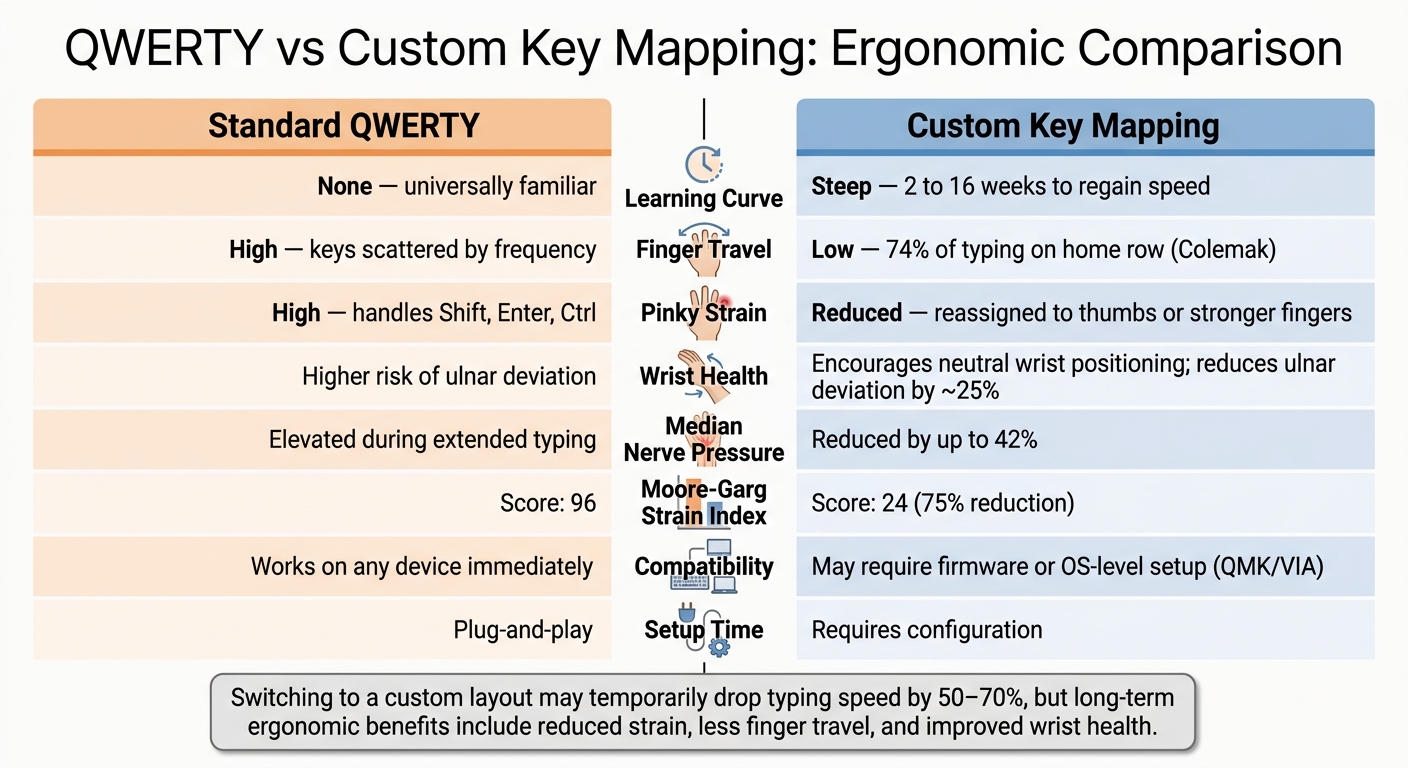
QWERTY vs Custom Key Mapping: Ergonomic Comparison
When deciding between standard and custom keyboard layouts, it’s important to weigh the trade-offs. Neither option is inherently better - it all comes down to your workflow, priorities, and how much time you're willing to dedicate to learning a new system.
The QWERTY layout is universally recognized and requires no setup or learning curve, which makes it incredibly convenient. However, this convenience has its downsides. The QWERTY design places an uneven workload on your fingers, often overburdening the weaker ones. Over time, this imbalance can lead to strain and discomfort.
On the other hand, custom key mapping offers ergonomic benefits that address these issues. For example, layouts like Colemak focus around 74% of typing on the home row, significantly reducing finger movement. Additionally, ergonomic keyboard kits paired with custom layouts can decrease ulnar deviation by about 25% and reduce median nerve pressure by up to 42% during extended typing sessions. Here's how the two approaches compare:
| Feature | Standard QWERTY | Custom Key Mapping |
|---|---|---|
| Learning Curve | None - universally familiar | Steep - 2 to 16 weeks to regain speed |
| Finger Travel | High - keys are scattered by frequency | Low - common keys are centralized on the home row |
| Pinky Strain | High - pinky handles keys like Shift, Enter, Ctrl | Reduced - functions can be reassigned to stronger fingers or thumbs |
| Wrist Health | Higher risk of ulnar deviation | Encourages more neutral wrist positioning |
| Compatibility | Works on almost any device immediately | May require firmware or OS-level adjustments |
| Setup Time | Plug-and-play | Requires configuration |
| Shortcuts | Standard shortcuts intact | Some shortcuts may shift, though layouts like Colemak preserve many familiar ones |
Switching to a custom layout does come with challenges. One of the biggest hurdles is the learning curve. Typing speed often drops by 50–70% in the first few weeks, and fully adjusting can take anywhere from 2 to 16 weeks, depending on the complexity of the changes. As Robert Jack Will puts it:
"Our hands and fingers might have a lot more knowledge about key positions and keyboard shortcuts than we are aware of. If you are used to hit something... without even thinking about it, then changing any key position… well, it will get you thinking about it!"
For those interested in exploring custom layouts, KeebsForAll offers high-quality mechanical keyboard components to help create a more ergonomic typing setup.
Conclusion
The standard QWERTY keyboard, originally designed to address typewriter mechanics, often places unnecessary strain on the hands and wrists. Custom key mapping can help address this issue by creating layouts that better align with natural hand movements. Options like Colemak and Dvorak, for example, significantly increase home row usage and reduce the amount of finger travel required during typing - shifting from a setup that contributes to strain to one that supports ergonomic health.
Beyond adopting alternative layouts, small but strategic remapping tweaks can further improve comfort. For instance, moving the Ctrl key to the Caps Lock position or turning the spacebar into a dual-function key can reduce pinky strain and wrist deviation. These adjustments don’t require a total overhaul of your typing habits but can still make a noticeable difference.
For beginners, Colemak offers a smooth transition. It retains familiar shortcuts like Ctrl+C and Ctrl+V while introducing ergonomic improvements. Pairing this layout with a mechanical keyboard that supports firmware-level remapping through tools like QMK or VIA ensures that your custom setup is portable across devices and operating systems.
"What matters is not how well the layout fits the metrics, it's how well the metrics fit you." - semi, Blog Author, KeebSupply Docs
Although switching to a new layout might temporarily reduce your typing speed, the long-term benefits - like reduced strain and improved comfort - are well worth the adjustment. If you're ready to make the leap, check out customizable mechanical keyboard components at KeebsForAll and start building a setup that works with your hands, not against them.
FAQs
What are the best first keys to remap for less strain?
To ease strain while typing, try keeping your fingers close to the home row. A good starting point is to remap commonly used functions - like modifiers, navigation keys, or symbols - to thumb clusters. This helps take the load off your weaker pinky fingers. Using heatmap data can also be helpful. It shows which keys you hit most often and highlights awkward positions that may need adjusting. Focus on placing frequently used keys within one unit (1u) of the home row to cut down on unnecessary finger movement.
Will custom key mapping mess up my shortcuts at work?
Custom key mapping can be introduced without throwing off your shortcuts - if you ease into it. Begin by tweaking just one or two keys so your muscle memory has time to adapt. Tools like Microsoft PowerToys make it simple to remap specific keys or combinations while preserving your existing shortcuts. This gradual method helps avoid disrupting your workflow and makes the adjustment process much smoother.
Do I need a QMK/VIA keyboard to get ergonomic remaps?
No, you don’t need a QMK or VIA-compatible keyboard to create ergonomic remaps. While hardware-level support lets you store settings directly on the keyboard, software-based solutions can achieve similar results with any keyboard. Tools like Microsoft PowerToys (for Windows) or KMonad (which intercepts keystrokes at the system level) make it possible. Even built-in OS layout editors can help you set up custom layers or tap-hold functions on standard keyboards.