
Typing Efficiency vs. Comfort: Finding the Balance
[ Back to Mechanical Keyboards 101 ]Typing on a keyboard is a daily task for millions, but choosing the right layout can significantly impact your speed, accuracy, and comfort. This article compares three popular keyboard layouts - Compact (60%), Ergonomic (Alice/Split), and Standard (75%/TKL) - to help you decide which suits your needs best.
Key Takeaways:
- Compact Layouts (60%): Save desk space and reduce strain by keeping your mouse closer, but lack dedicated keys and require adjustment to function layers.
- Ergonomic Layouts (Alice/Split): Prioritize wrist health and comfort with a natural typing posture, though they take time to get used to.
- Standard Layouts (75%/TKL): Offer familiarity and ease of use with minimal learning curve but don’t address wrist strain as effectively as ergonomic designs.
Quick Comparison:
| Layout Type | Typing Speed | Error Rate | Long-Session Comfort | Learning Curve |
|---|---|---|---|---|
| Compact (60%) | Moderate | Higher | High | Moderate |
| Ergonomic (Alice/Split) | Moderate (initially) | Low | Very High | High |
| Standard (75%/TKL) | High | Low | Moderate | Low |
Your choice depends on what matters most to you - speed, comfort, or ease of use. Keep reading for a deeper dive into each layout's strengths and challenges.
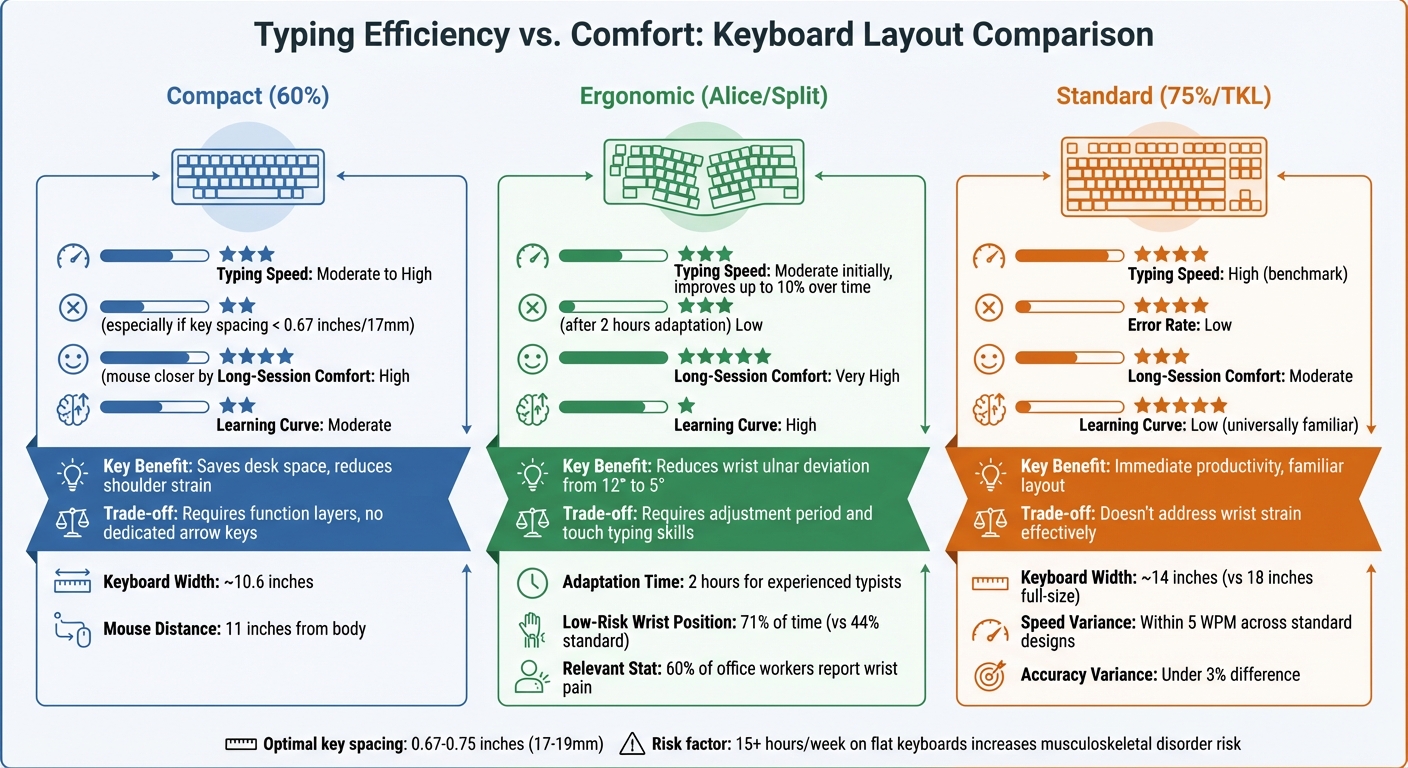
Keyboard Layout Comparison: Compact vs Ergonomic vs Standard
1. Compact Layouts (60%)
A 60% keyboard trims away the extra keys, leaving you with just the essentials. Measuring about 10.6 inches wide, it’s nearly half the size of a full keyboard, which spans roughly 18 inches. This smaller design pulls your mouse closer, reducing the reach distance from around 18.9 inches to just 11 inches. The result? Less strain on your shoulder and neck during those long hours at your desk.
Typing Speed
How fast you type on a 60% keyboard depends heavily on the spacing between keys. Research shows that the sweet spot for key spacing is between 0.67 and 0.75 inches (17–19 mm). If the spacing drops below 0.63 inches (16 mm), typing speed can take a hit - especially for those with larger hands or fingers.
Error Rate
When key spacing gets too tight, mistakes tend to pile up. For instance, spacing at 0.63 inches (16 mm) significantly increases error rates. On the other hand, keeping the spacing closer to 0.75 inches (with a margin of about 0.04 inches) helps maintain accuracy and reduces the likelihood of typos.
Long-Session Comfort
One of the biggest perks of a 60% keyboard is its compact size, which keeps your mouse within easy reach. This setup encourages a more relaxed posture, making it a favorite for extended typing or gaming sessions. However, there’s a trade-off: the lack of dedicated arrow, navigation, and media keys. To access these, you’ll need to use layers or remap keys, which can initially strain your fingers as you adjust to the lateral stretching required. While this design promotes better ergonomics in the long run, the adjustment period can be challenging.
Learning Curve
Adapting to a 60% layout takes time, particularly if you switch to optimized layouts like Colemak or Dvorak. During this transition, you might notice a temporary dip in typing speed. But once you’ve adjusted, the reduced finger travel and potential for greater accuracy often make the effort worthwhile, as explored in our Mechanical Keyboards 101 guide.
sbb-itb-3cb9615
2. Ergonomic Layouts (Alice/Split)
Ergonomic keyboards, like the Alice and split designs, take a different approach to typing comfort. They angle and separate the keys to align with the natural resting position of your hands. The Alice layout, for instance, features a split with a gentle curve, promoting a more relaxed hand posture while typing. Fully split keyboards go even further, allowing you to position each half independently, perfectly matching your shoulder width.
Typing Speed
Once you get the hang of it, typing speed on ergonomic keyboards can match - or even surpass - traditional keyboards. Studies show that experienced typists can adapt to a split keyboard in just 2 hours of practice, achieving performance levels similar to flat keyboards. While the initial adjustment might slow you down, the natural hand positioning of these keyboards often leads to faster typing over time. In fact, ergonomic setups have been shown to improve typing speed by up to 10%. It’s a short-term challenge with long-term gains, including fewer errors and better wrist alignment.
Error Rate
These layouts don’t just feel better - they can help you type more accurately. By reducing ulnar deviation (the outward bending of your wrists) from an average of 12° on standard keyboards to just 5°, ergonomic designs help your fingers land more precisely on the keys. The Alice layout, in particular, aligns the keys with your natural finger movements, further enhancing accuracy.
Long-Session Comfort
Comfort is where ergonomic keyboards truly stand out. Traditional keyboards often force your wrists into awkward angles - bent outward and tilted upward - which can strain nerves and tendons over time. In contrast, split and Alice designs keep your wrists straight and flat, a neutral position endorsed by ergonomics experts. A study involving 90 office workers found that split keyboards significantly reduce wrist ulnar deviation, a major risk factor for musculoskeletal disorders. Considering that 60% of office workers report hand or wrist pain from prolonged typing, the benefits are clear. Many split keyboards also offer "tenting" (raising the inner edges), which eases the strain of keeping your palms flat for extended periods. This improved comfort not only protects your hands but also helps maintain productivity during long work sessions.
Learning Curve
Adapting to ergonomic layouts requires a bit of patience. The physical gap between the keyboard halves can prevent bad habits, like reaching across with the wrong hand, but it might feel awkward at first. If you’re not a touch typist, the transition can be more challenging, as these layouts are best suited for those who already use touch typing. A November 1999 Cornell University study, led by Professor Alan Hedge, tested a vertical split keyboard with 12 experienced typists. The results showed that the keyboard kept wrist movements in the low-risk zone for carpal tunnel syndrome 71% of the time, compared to just 44% with traditional keyboards. While the adjustment period may seem inconvenient, the long-term payoff in comfort and efficiency is hard to ignore.
3. Standard Layouts (75%/TKL)
Standard layouts, like TKL (Tenkeyless) and 75% keyboards, stick to the classic QWERTY design but with a more compact key set. They drop the numeric keypad while keeping the function row and arrow keys intact. This design strikes a balance between the space-saving benefits of compact keyboards and the functionality of full-size ones. It’s a practical choice for those who want a familiar layout with a smaller footprint.
Typing Speed
Using a TKL or 75% keyboard means you can type at your best speed right away. The familiar key arrangement taps into your muscle memory, so there’s no need to adjust. Studies reveal that typing speed differences across standard keyboard designs are minimal - usually within 5 WPM.
Error Rate
These layouts retain full-sized modifier keys (like the 2.25x and 2.75x Shift keys) and dedicated navigation clusters, which help reduce errors. Unlike compact keyboards that rely on function layers, everything is where you expect it to be. Research shows accuracy differences between standard keyboard designs are typically under 3%. This means fewer accidental key presses and a smoother typing experience.
Long-Session Comfort
One of the standout benefits of TKL and 75% keyboards is improved comfort during extended use. At about 14 inches wide, TKL keyboards are noticeably narrower than full-size boards, which are roughly 18 inches wide. This smaller size lets you position your mouse closer to your body, reducing shoulder strain. The Canadian Centre for Occupational Health and Safety explains:
"A shorter keyboard will help reduce the need to overreach or lean. It will also provide more options for the computer mouse placement".
That said, these keyboards still follow the traditional flat design, which can put your forearms in an awkward position. For office workers logging over 15 hours per week on flat keyboards, this can increase the risk of upper extremity musculoskeletal disorders. To counteract this, consider using a wrist rest and maintaining a 90-degree elbow angle while typing.
Learning Curve
Another advantage of these layouts is their ease of use. If you’re already comfortable with standard keyboards, you’ll feel right at home. This makes them a great option for anyone looking to improve desk ergonomics without having to relearn typing. The only slight adjustment might come from the sloped profile of a mechanical keyboard if you’re switching from a flat laptop keyboard.
Pros and Cons
Here's a quick comparison of how the three main keyboard layouts measure up in terms of typing efficiency and comfort:
| Layout Type | Typing Speed | Error Rate | Long-Session Comfort | Learning Curve |
|---|---|---|---|---|
| Compact (60%) | Moderate to High | Higher if keys are spaced below 0.67 inches (17 mm) | High (brings your mouse closer) | Moderate (requires layer navigation) |
| Ergonomic (Alice/Split) | Moderate (initially) | Low (after adaptation) | Very High (reduces ulnar deviation) | High (involves key remapping and adjustment) |
| Standard (75%/TKL) | High (benchmark) | Low | Moderate (standard posture) | Low (universally familiar) |
The table gives a clear snapshot of their strengths and weaknesses, but let’s dive deeper into what makes each layout shine - or fall short.
Compact layouts are great for reducing mouse reach, which is especially helpful for users with narrower shoulders. By keeping the mouse closer, it minimizes strain from overreaching. However, the trade-off is the need to navigate function layers, which can take some time to get used to.
Ergonomic layouts are designed with comfort in mind, particularly for long typing sessions. By reducing ulnar deviation (the awkward outward bending of your wrists), they help protect against strain and discomfort. That said, they do come with a steeper learning curve. Adjusting to these layouts often involves remapping keys and getting used to a different typing feel, but the payoff is improved accuracy and comfort over time.
Standard layouts are the go-to option for most people. They’re familiar, easy to use, and offer fast typing with minimal errors right out of the box. However, they don’t address wrist positioning issues as effectively as ergonomic designs. For prolonged typing sessions, this could mean more strain compared to the ergonomic alternatives. Still, their simplicity and immediate usability make them a solid choice for anyone seeking quick productivity without a learning curve.
Conclusion
The discussion above highlights the unique benefits of compact, ergonomic, and standard keyboard layouts. There’s no one-size-fits-all solution when it comes to finding the perfect keyboard. It all boils down to choosing a layout that aligns with your personal preferences and daily needs:
"What matters is not how well the layout fits the metrics, it's how well the metrics fit you".
Your ideal keyboard setup depends on factors like hand size, typing habits, and how much time you spend at your desk.
For gamers and minimalists, layouts like TKL or 65% can be a game-changer. These layouts save desk space, allowing for smoother mouse movement while keeping essential keys within easy reach. On the other hand, if you’re someone who types for long hours or struggles with wrist discomfort, ergonomic or split layouts might be worth considering. While they come with a bit of a learning curve, they can significantly reduce wrist strain and improve overall comfort over time.
For those looking to customize their typing experience, Freebird keyboard kits from KeebsForAll provide a great starting point. These kits feature hot-swappable PCBs and QMK/VIA firmware support, letting you test out different keyboard switches and key mappings without the hassle of soldering. You can also choose between softer POM or FR4 plates for added flexibility ($19.00) or opt for Brass plates ($45.00) if you prefer a firmer, more resonant typing feel. Pricing starts at $160.00 for the Freebird60, $199.00 for the Freebird75, and $249.99 for the Freebird TKL.
Don’t hesitate to experiment with different switch types or adjust your keyboard’s tilt angle. By customizing your setup, you can create a keyboard that perfectly complements your typing style and daily routine.
FAQs
What’s the difference between compact and ergonomic keyboard layouts?
Compact keyboards are all about saving space. By trimming down the number of keys, these keyboards often ditch the numeric keypad, shrink the function row, and pack the keys closer together. This makes them a great choice if you’re working with a small desk or need something portable. That said, getting used to the layout can take some time, as finding and using certain keys may not feel as intuitive at first.
Ergonomic keyboards, on the flip side, focus on comfort and reducing strain. These are usually split into two sections, encouraging a more natural hand position. Many also come with adjustable angles to ease wrist tension and support better posture - perfect for those who spend long hours typing. While they do take up more space and might take some getting used to, they can make a big difference in preventing discomfort over time.
How can an ergonomic keyboard layout enhance typing comfort?
Ergonomic keyboard layouts are crafted to keep your hands, wrists, and forearms in a natural, neutral position, easing the strain that often comes with extended typing. Features such as split designs, columnar key arrangements, and tenting (where the keyboard halves are angled upward) help align your wrists in a way that reduces pressure on nerves and muscles.
By minimizing wrist bending and unnecessary finger movement, these layouts can help lower the chances of repetitive strain injuries like carpal tunnel syndrome and general fatigue. They also encourage better posture, making long typing sessions more comfortable and less taxing on your body.
If you're considering making the switch, KeebsForAll provides a range of ergonomic keyboards and accessories designed to enhance your typing comfort and overall well-being.
What type of keyboard layout is best for minimizing wrist strain during extended typing sessions?
To ease wrist strain during extended typing sessions, split keyboards and those with a tented (vertically inclined) design are highly effective choices. These layouts encourage a more natural alignment of your wrists and forearms, reducing the risk of ulnar deviation and extension - two common culprits behind typing discomfort.
Although alternative key layouts like Dvorak or Colemak can help cut down on finger fatigue, the physical design and shape of the keyboard play a far greater role in supporting wrist health. If you spend hours typing each day, investing in a split or adjustable ergonomic keyboard can make a big difference in maintaining comfort and minimizing strain.