
Compact vs Full-Size Keyboards: Ergonomic Pros and Cons
[ Back to Mechanical Keyboards 101 ]When choosing between compact and full-size keyboards, ergonomics and desk space are key considerations. Compact keyboards, like 60% layouts, save space and improve mouse positioning by keeping it closer to your body's center, reducing shoulder strain. Full-size keyboards, with their dedicated numpad and full key set, are better for tasks requiring frequent numeric input but can cause discomfort due to their width pushing the mouse farther away.
Key Takeaways:
- Compact Keyboards: Smaller size improves shoulder alignment, reduces wrist strain, and frees desk space. However, missing dedicated keys may slow down tasks requiring frequent use of function layers.
- Full-Size Keyboards: Offers all keys for efficiency in data-heavy tasks but can lead to shoulder and wrist strain due to extended reach.
Quick Comparison:
| Feature | Compact Keyboards | Full-Size Keyboards |
|---|---|---|
| Width | 10–11 inches (60% layout) | 17–18 inches |
| Mouse Position | Closer to the center | Farther to the right |
| Desk Space | Saves space | Takes up more space |
| Numeric Input | Needs external numpad | Built-in numpad |
| Wrist Strain | Less ulnar deviation | Increased lateral strain |
| Learning Curve | 1–3 weeks for function layers | Familiar layout, no adjustment |
Compact keyboards are ideal for those prioritizing ergonomics and desk efficiency, while full-size keyboards suit users needing a dedicated numpad and full key access.
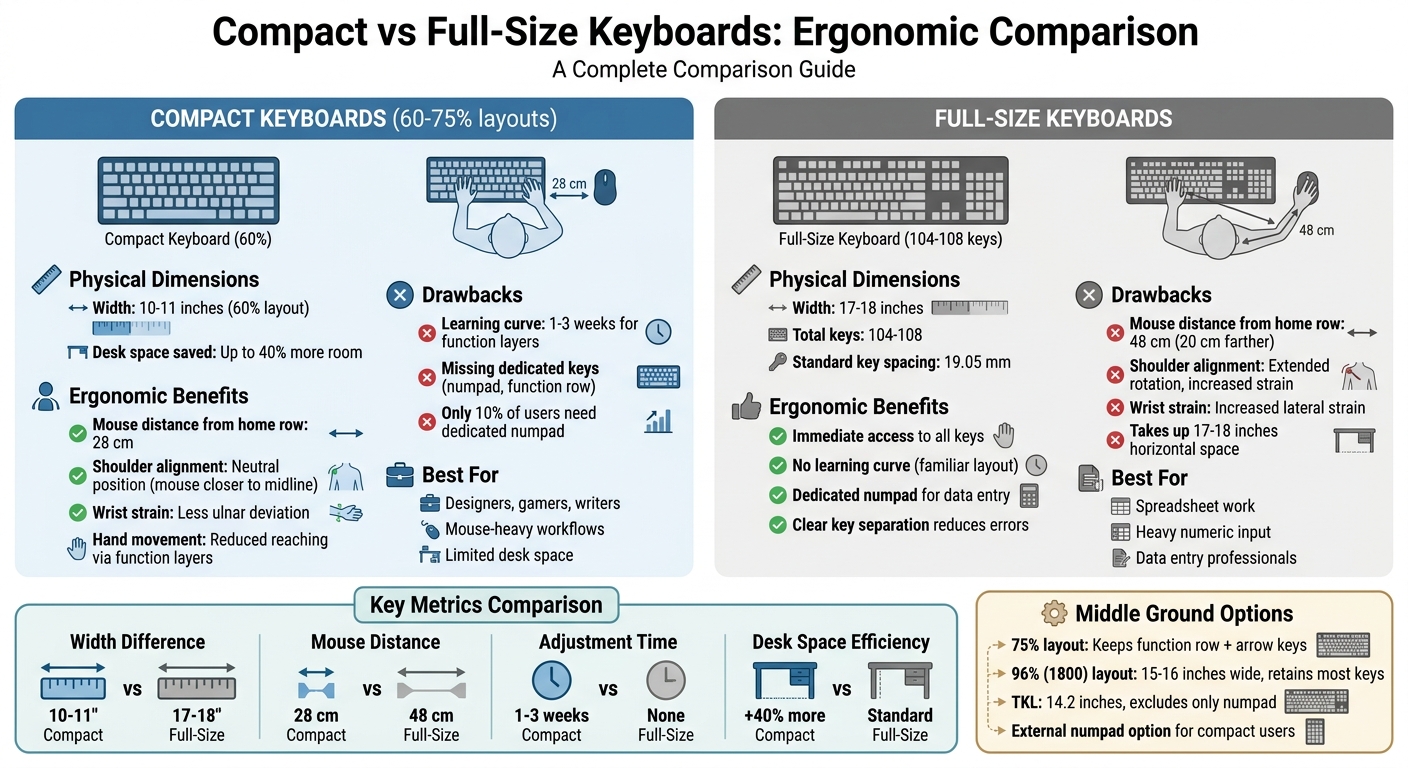
Compact vs Full-Size Keyboards: Ergonomic Comparison Chart
Compact Keyboards: Ergonomic Benefits and Drawbacks
Benefits of Compact Keyboards
Compact keyboards are great for improving mouse positioning. Full-size keyboards are usually around 17–18 inches wide, but a 60% compact keyboard trims that down to just 10–11 inches. With a full-size keyboard, the mouse is often pushed several inches farther to the right, which can force your shoulder into an awkward, extended outward rotation. Compact keyboards help fix this by reducing the distance, allowing your wrist and elbow to stay in a more natural and comfortable position while using the mouse.
Another perk? Function layers keep your fingers closer to the home row, cutting down on repetitive side-to-side movements that can strain your wrists and forearms. Plus, their smaller size saves desk space. A 60% keyboard, for example, can free up as much as 40% more room compared to a full-size model. That extra space can be used for a larger mousepad or other ergonomic tools. And here’s the thing: only about 10% of users rely heavily on a dedicated numeric keypad, so most people won’t miss it. For those who do, external numpads are always an option for tackling data-heavy tasks.
While compact keyboards bring clear ergonomic and space-saving benefits, they do come with some trade-offs.
Drawbacks of Compact Keyboards
One of the biggest downsides of compact keyboards is the lack of dedicated keys. Many compact layouts - like 60%, 65%, and even smaller 40% boards - leave out the numpad, function row, and sometimes arrow keys. If your day-to-day tasks involve frequent spreadsheet work or lots of navigation shortcuts, you’ll need to rely on function layers to access these missing keys, which can slow things down.
Adjusting to a compact layout takes time. Most users need anywhere from one to three weeks to develop muscle memory for the new key positions.
"I've always insisted on using a full-size keyboard and suffered shoulder pain; I should have switched to an 80% form factor years ago." - Daniel Aleksandersen
If you’re hesitant about jumping straight to a 60% keyboard, starting with a 75% layout might be a good middle ground. This size keeps the function row and arrow keys while still improving mouse positioning. For those who want even more customization, programmable firmware like QMK or VIA lets you create custom key layers. That said, ultra-compact boards - especially 40% layouts - can be tricky for guests or colleagues to use.
sbb-itb-3cb9615
Full-Size Keyboards: Ergonomic Benefits and Drawbacks
Benefits of Full-Size Keyboards
Full-size keyboards give you immediate access to all 104–108 keys without needing to rely on function layers. This is especially useful for tasks involving heavy numeric input, as the dedicated number pad significantly boosts efficiency while reducing mental strain. The layout, with its clear separation between the alphanumeric section, navigation keys, and number pad, also helps minimize accidental keystrokes.
Over the years, full-size keyboards have become the standard, meaning many users are already familiar with their layout. This familiarity can enhance productivity. Additionally, the larger size often allows space for extra features like macro keys or programmable inputs, which can simplify complex workflows.
"The keyboard is like a horse saddle: while computers (the horses) come and go, the saddle (the keyboard) is a personal interface that should last a lifetime." - Professor Eiiti Wada, Designer of the HHKB layout
For professionals who spend their days navigating spreadsheets or handling detailed data entry, a full-size keyboard is often the go-to option. The standard key spacing of 19.05 mm also provides a comfortable typing experience, especially for touch typists.
However, while the design offers functionality and familiarity, its size can present some ergonomic challenges.
Drawbacks of Full-Size Keyboards
One major downside of full-size keyboards is their width - about 17.5 inches (445 mm). This design forces the mouse farther to the right, which can lead to shoulder strain. The extended reach often causes your shoulder to flare outward, increasing tension in the upper back and reducing available desk space for mouse movement.
Another ergonomic concern is ulnar deviation, a wrist strain that occurs when the keyboard layout favors one hand more than the other. Additionally, reaching for distant key clusters like the number pad or navigation keys requires larger and more frequent hand movements, which can become tiresome over time. Compact keyboards, with their layered functions, often mitigate these issues.
To address these challenges, you might consider pairing a compact keyboard with a separate, repositionable numpad. This setup allows for greater flexibility and improved ergonomics. Another option is the 1800 (96%) layout, which retains nearly all the functionality of a full-size keyboard but in a narrower design - around 15–16 inches wide - by minimizing the dead space between key clusters.
This One Keyboard Change Can Fix Your Ergonomics
Ergonomic Comparison: Compact vs Full-Size
Looking at the ergonomic details, the difference in keyboard width plays a big role in mouse positioning and overall comfort. Full-size keyboards, which are about 17–18 inches wide, push the mouse farther to the right. This forces your shoulder into an extended, rotated position. On the other hand, a 60% keyboard, at just 10–11 inches wide, keeps the mouse much closer to your body's midline. This positioning helps maintain a relaxed, neutral shoulder posture .
The distance your hand travels between the keyboard and mouse also highlights these differences. With a full-size keyboard, the distance from the home row to the mouse resting position is roughly 48 cm (about 19 inches). A 60% keyboard reduces that distance to 28 cm (11 inches). This 20 cm difference significantly lowers shoulder strain, eases upper back tension, and promotes a more comfortable typing setup for extended use.
To sum up the ergonomic pros and cons, compact and full-size keyboards differ in key areas like shoulder alignment, wrist strain, and desk space usage. The table below breaks down these distinctions for a clearer side-by-side comparison.
Comparison Table
| Ergonomic Factor | Compact Keyboards | Full-Size Keyboards |
|---|---|---|
| Shoulder Alignment | Mouse closer to midline; neutral shoulder position | Mouse far right; shoulder abduction and rotation |
| Wrist Strain | Less ulnar deviation with centered positioning | Increased lateral strain; sideways wrist bending |
| Hand Movement | Reduces repetitive reaching via layered functions | Frequent reaching for numpad and navigation keys |
| Desk Space Efficiency | Saves up to 8 inches for mousepads or peripherals | Takes up 17–18 inches of horizontal desk space |
| Mouse Distance (Home Row) | 28 cm (60% layout) | 48 cm (full-size layout) |
How Keyboard Size Affects Posture and Wrist Strain
The size of your keyboard plays a big role in how your body aligns during use, especially when it comes to mouse positioning and wrist posture. Larger, full-size keyboards (spanning 17–18 inches) push the mouse further to the right, which can lead to shoulder abduction and increased tension in your upper body. In contrast, compact keyboards (around 9–11 inches) allow the mouse to stay closer to the center, helping your shoulders stay relaxed and your elbows maintain a natural angle. This change in mouse placement also impacts wrist positioning, potentially leading to strain if not properly aligned.
When it comes to wrist alignment, full-size keyboards often cause the wrists to angle sideways (a movement called ulnar deviation), which can stress tendons and ligaments over time. Compact keyboards, however, encourage a more neutral wrist position by keeping the layout centered.
Compact layouts also help reduce repetitive reaching by keeping your hands closer to the home row, thanks to the use of function layers. However, neither compact nor full-size keyboards can address vertical wrist angles - whether your wrists bend upward or downward - without the help of ergonomic tools like wrist rests or adjustments to your desk height.
The effects of these adjustments are backed by research. For example, studies show that a 45° wrist extension increases carpal tunnel pressure to 4.0 kPa, compared to just 1.9 kPa at a neutral 0° position. To minimize wrist strain, adjust your chair so your elbows are bent between 90 and 110 degrees relative to the desk. Additionally, a slight negative tilt of 3–5 degrees - where the front of the keyboard is lower than the back - can help maintain a neutral wrist posture.
For those who frequently use numeric input, combining a compact keyboard with a separate, repositionable numpad can offer a good balance of ergonomics and functionality. Placing the numpad to the left of the keyboard keeps the mouse closer to your body’s centerline, reducing strain while still supporting full data entry needs.
Desk Space and Mouse Positioning
The width of your keyboard plays a big role in determining how much desk space you have for your mouse and other peripherals. A standard full-size keyboard is about 17–18 inches wide, while compact models are significantly smaller, saving roughly 7 inches in width. That extra space can make a noticeable difference, giving you more room for larger mousepads, tablets, or even macro pads. It’s not just about fitting more gear - it’s also about improving how you position your mouse for different tasks.
For example, with a full-size keyboard, the distance from the WASD cluster to the mouse is around 50 cm (19.7 inches). On a 60% keyboard, that distance drops to about 30 cm (11.8 inches), which can be a game-changer for both gaming and office work. Ergonomic guidelines suggest keeping at least 12 cm (4.7 inches) of space to the right of your keyboard to ensure smooth and natural mouse movements.
"The ergonomic benefit of a compact keyboard isn't just about the keyboard itself. It's about where your mouse ends up relative to your body." – Dareu
Compact keyboards shine for users who rely on low-DPI mouse settings. The extra desk space lets you make large, sweeping movements without bumping into anything. Plus, they help keep your workspace tidy and make switching between workstations easier.
If you occasionally need a numpad for tasks like data entry, you might want to pair a compact keyboard with a separate external numpad. This setup gives you the flexibility to use the numpad only when necessary, while still keeping your mouse in an ideal position.
KeebsForAll Freebird Series for Ergonomic Typing

KeebsForAll's Freebird series strikes a balance between ergonomic design and customization, building on the comparisons mentioned earlier. The lineup includes three models:
- Freebird60 ($160.00): A 60% compact layout measuring 11.6" x 4.2", perfect for saving desk space.
- Freebird75 ($199.00): Slightly larger at 12.8" x 5.5", this model retains dedicated arrow and function keys.
- Freebird TKL ($249.99): At 14.2" x 5.2", it excludes only the numpad, keeping your mouse closer for improved ergonomics.
All three keyboards feature hot-swappable PCBs, which let you swap switches without soldering. This is ideal for customizing your typing experience; for example, you can use 45g linear switches to minimize finger fatigue during extended use. The CNC-machined aluminum cases add stability and help maintain consistent wrist positioning. For reference, the Freebird TKL weighs 4.9 pounds, while the Freebird75 comes in at 3.2 pounds.
The typing angles are thoughtfully designed to promote neutral wrist alignment: 5° for the Freebird60 and 6° for both the Freebird75 and TKL. To further enhance comfort, the Freebird60 employs an O-ring tray mount, while the Freebird75 and TKL offer Top Burger Mount or Gummy O-Ring options. These mounting styles absorb key impacts, reducing strain on your joints.
Each model is compatible with QMK and VIA firmware, allowing you to remap keys to make repetitive tasks more efficient. Notably, the Freebird60 was the first keyboard kit to include Durock V2 screw-in stabilizers as a standard feature. These thoughtful design elements demonstrate how careful engineering can directly improve typing ergonomics.
Conclusion
Deciding between a compact and full-size keyboard boils down to your specific tasks, workspace setup, and personal comfort. If your work revolves around tasks like spreadsheets or frequent numeric input, a full-size or 96% keyboard with a dedicated numpad can make life easier. On the other hand, if you're a designer, gamer, or writer who relies heavily on a mouse, compact layouts (such as TKL, 75%, or 65%) can provide ergonomic benefits by keeping your mouse closer to your body's midline, reducing shoulder strain.
When weighing your options, the 75% layout is often a great compromise. It keeps the function row and arrow keys while trimming down the overall width, which improves mouse positioning. Keep in mind, switching to a compact layout may require some adjustment - typically about 1 to 3 weeks - to get used to function layers and smaller spacing.
"The ergonomic benefit of a compact keyboard isn't just about the keyboard itself. It's about where your mouse ends up relative to your body." - Dareu
To choose the best layout, measure the distance between your natural typing position and where your mouse rests. Aim for a setup that keeps both within easy reach. If you occasionally need a numpad, consider pairing a compact keyboard with an external numpad. This way, you can reposition it as needed without compromising your overall workspace ergonomics.
The KeebsForAll Freebird series is a great example of how thoughtful design - like hot-swappable switches and well-calibrated typing angles - can enhance comfort across various keyboard sizes. If you are new to the hobby, check out our mechanical keyboards 101 guide for more basics. Focus on maintaining neutral wrist positioning, optimizing your desk arrangement, and selecting a layout that supports your daily tasks effectively.
FAQs
Which compact layout (TKL, 75%, 65%, 60%) is best for my work?
When it comes to compact keyboards, the best layout really depends on what you do most often. Full-size keyboards work best if you frequently use the number pad, like for data entry or calculations. If saving desk space is a priority, a 65% layout is a solid choice since it keeps the arrow keys and works well for general tasks. Need function keys too? A 75% layout gives you that extra functionality without taking up much room. Think about your workspace and whether portability or having specific keys is more important to you.
How can I keep a numpad without pushing my mouse too far right?
If you want to keep a numpad but avoid pushing your mouse too far to the right, consider switching to a compact keyboard layout, like a tenkeyless (TKL) keyboard. TKL keyboards remove the numpad but retain all other essential keys, allowing your mouse to stay closer and reducing strain on your arm. Another option is a split or ergonomic keyboard, which lets you adjust the placement for a more natural posture, helping to avoid unnecessary arm extension.
What desk setup changes reduce wrist and shoulder strain the most?
To ease wrist and shoulder strain, try switching to a compact keyboard, like a 60% layout. This design keeps the mouse closer to the center of your desk, cutting down on shoulder rotation and helping your arms stay in a neutral position. Look for a keyboard with adjustable tilt or tenting features to encourage a more natural wrist posture. Keeping your keyboard and mouse close together is a simple way to boost comfort during long hours at your desk.