
QWERTY vs. Custom Layouts: Which is Faster?
[ Back to Mechanical Keyboards 101 ]Is QWERTY holding you back? It might be. The QWERTY keyboard, designed in the 1870s to prevent typewriter jams, dominates today despite its inefficiencies. For those new to the hobby, understanding mechanical keyboard basics can help put these layout choices into context. Custom layouts like Dvorak and Colemak aim to reduce strain and improve speed by placing commonly used keys under your fingers' natural positions. While QWERTY users' fingers travel up to 20 miles per day, Dvorak users average just 1 mile, offering a clear ergonomic edge.
But here's the catch: switching to a custom layout takes time and effort. It can take 1–3 months of regular practice to regain your original typing speed. And while custom layouts reduce finger movement and improve comfort, the speed advantage is often modest - 5–10% faster for experienced users.
Key Insights:
- QWERTY: Universal, familiar, but inefficient and strain-heavy.
- Dvorak: Prioritizes comfort, reduces movement, but changes shortcut positions.
- Colemak: Balances efficiency with shortcut compatibility and ease of learning.
Whether you're sticking with QWERTY for its ubiquity or considering a switch to improve comfort, the choice depends on your priorities: convenience or long-term typing ease.
The QWERTY Layout Explained
History and Adoption
The QWERTY layout, a design many of us take for granted today, was created by Christopher Latham Sholes in the early 1870s, with assistance from Carlos Glidden and Samuel W. Soulé. Sholes spent years refining the arrangement, carefully considering letter frequencies and key placements before finalizing the layout.
In 1873, Sholes sold the rights to E. Remington and Sons. The company made some final adjustments, including moving the "R" key to the top row, allowing salesmen to type "TYPE WRITER" using just one row - a clever marketing move. The QWERTY layout solidified its dominance with the release of the Remington No. 2 in 1878, the first typewriter to feature a shift key for switching between upper and lower case. By 1891, more than 100,000 QWERTY typewriters were in use across the United States. The 1893 merger of the five largest typewriter manufacturers into the Union Typewriter Company cemented QWERTY as the universal standard.
"The keyboard arrangement was incidentally changed into QWERTY, first to receive telegraphs, then to thrash out a compromise between inventors and producers, and at last to evade old patents."
- Koichi Yasuoka and Motoko Yasuoka, Researchers, Kyoto University
This rich history explains how QWERTY became the default layout we know today, along with the challenges it still presents.
Advantages of QWERTY
One of the biggest strengths of QWERTY is its universal presence. It’s built into virtually every operating system and device, meaning you can start typing on almost any keyboard without needing to adjust or install additional software. This seamless compatibility makes it incredibly convenient.
QWERTY is also deeply ingrained in education and the workplace. Schools and typing courses have long taught it as the standard, ensuring generations of users are familiar with it. Additionally, many keyboard shortcuts - like Ctrl+C for copy, Ctrl+V for paste, and Ctrl+Z for undo - are designed with QWERTY in mind, making them quick and easy to use. For newcomers, this familiarity removes the hassle of learning an alternative layout.
While its widespread adoption is a clear advantage, the QWERTY layout does come with some notable limitations.
Drawbacks of QWERTY
The QWERTY layout wasn’t designed with speed or comfort in mind. Its primary purpose was to prevent mechanical jams in 19th-century typewriters. This focus led to a design that favors the left hand, with over half of all typing performed by the left hand alone. On top of that, only one vowel - "A" - is positioned on the home row. Over 3,000 English words can be typed using just the left hand, while only a few hundred can be typed with the right.
Another issue lies in the staggered, diagonal key arrangement. This design was originally needed to prevent typebar clashes, but on modern keyboards, it forces unnecessary lateral finger movement. As a result, QWERTY users spend more than 70% of their typing time away from the home row. To put this into perspective, only 120 English words can be typed using the QWERTY home row, compared to 5,000 words on the Dvorak layout. These inefficiencies highlight the compromises made in its design and the impact they have on typing speed and comfort.
sbb-itb-3cb9615
Custom Layouts Built for Efficiency
Popular Custom Layout Options
The QWERTY layout was originally created to address mechanical typewriter limitations, but newer layouts like Dvorak and Colemak aim to improve typing efficiency. Dvorak focuses on alternating hands while typing and places all vowels on the home row, creating a smoother rhythm. Colemak, meanwhile, offers an ergonomic update by modifying only 17 keys from QWERTY, keeping common keyboard shortcuts intact.
In terms of home row usage, QWERTY keeps your fingers there only 32% to 34% of the time. Dvorak improves this to about 69% to 70%, and Colemak goes even further, reaching 72%. This means less finger movement and fewer repetitive motions, which can help reduce strain.
Colemak also minimizes same-finger letter combinations, with a rate of just 1.2%, compared to Dvorak's 2.3% and QWERTY's 5.4%. When it comes to finger travel distance, Dvorak cuts it to 56.7% of QWERTY's, while Colemak reduces it further to 48.5%.
Advantages of Custom Layouts
The benefits of these layouts go beyond just numbers. By placing frequently used letters on the home row, both Dvorak and Colemak reduce the strain on your fingers and wrists during long typing sessions. Dvorak’s emphasis on hand alternation also creates a typing rhythm that many find more comfortable and less tiring.
These layouts also distribute the workload more evenly across your fingers. They shift tasks away from weaker fingers, like the pinkies, and toward stronger ones, like the index and middle fingers. Some designs even assign additional high-frequency keys to thumbs, which typically only handle the spacebar, further easing the workload.
"Dvorak and Colemak show to be clearly better than Qwerty... the reduction in finger movement is far more important an issue."
- mctape, Author, mctape.wordpress.com
One of Colemak’s standout features is its practicality for shortcut-heavy workflows. It keeps the Z, X, C, and V keys in their QWERTY positions, so familiar shortcuts like Ctrl+Z (undo), Ctrl+X (cut), Ctrl+C (copy), and Ctrl+V (paste) remain unchanged. Dvorak, however, relocates these keys, which can require custom remapping or using both hands for shortcuts.
Still, switching to a custom layout isn’t without its challenges.
Challenges of Switching Layouts
The biggest obstacle when adopting a new layout is the steep learning curve. It often takes about a month to reach 30 words per minute and 1 to 3 months of regular practice to regain QWERTY-level speeds. Many users report needing around 100 hours of focused practice to feel truly comfortable.
Switching layouts can also disrupt muscle memory, especially if you rely on keyboard shortcuts in software like Vim or for tasks like video playback. These shortcuts, designed for QWERTY, may require extensive remapping to work with a custom layout.
"Does it feel nicer? YES. I recommend on this alone, home row typing is so nice."
- Ben Lu, Software Developer
Compatibility can also be an issue. Using public computers, shared workstations, or a colleague’s device becomes tricky if you’re accustomed to a custom layout. For Windows users, Colemak isn’t natively supported, so third-party software is required. This can lead to occasional reversion to QWERTY, which is frustrating. Additionally, unless you physically rearrange your keycaps, the printed letters won’t match the software layout, which can be confusing if you glance at the keyboard.
Qwerty vs Dvorak vs Colemak
QWERTY vs. Custom Layouts: Speed and Ergonomics
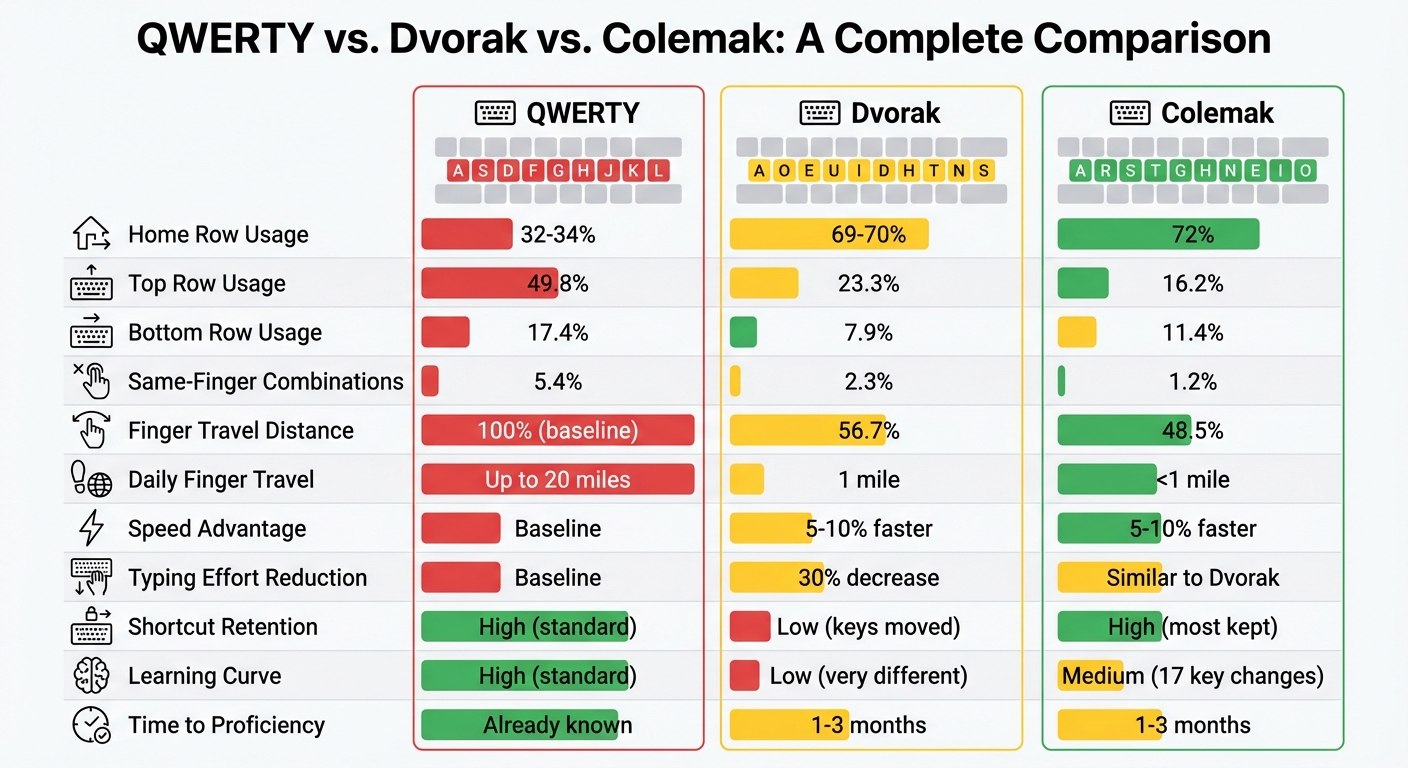
QWERTY vs Dvorak vs Colemak keyboard layout comparison
Typing Speed and Efficiency
When comparing typing speeds, the differences between QWERTY and custom layouts like Dvorak or Colemak can be subtle. While custom layouts are designed for greater efficiency, they don't necessarily lead to dramatic speed improvements for those who are already skilled with QWERTY.
For instance, experienced Dvorak users often type 5% to 10% faster than their QWERTY counterparts once they've fully adapted. However, in the August 2020 Ultimate Typing Championship, the fastest QWERTY user still outperformed the top Dvorak competitor. This shows that, despite their theoretical advantages, custom layouts don't always dominate when it comes to raw speed, especially in high-stakes competitions.
Ultimately, typing speed depends on a mix of familiarity, practice, and individual preference, with ergonomic factors also playing a role.
Ergonomic Considerations
The ergonomic benefits of custom layouts become apparent when you look at how they distribute finger workloads. QWERTY often places a heavier strain on the left hand and the weaker pinky fingers, while layouts like Dvorak aim to spread the effort more evenly across stronger fingers, such as the index and middle fingers. This design helps reduce repetitive strain injuries (RSI) and minimizes wrist discomfort during extended typing sessions.
Dvorak users, for example, report a 30% decrease in typing effort, which translates to less physical strain. This ergonomic advantage not only supports comfort but can also lead to more consistent typing speeds over longer periods. Professionals who spend six or more hours a day typing - like writers or programmers - often choose Dvorak or Colemak to combat fatigue and lower their risk of RSI.
"If there is anything we should be able to agree on in keyboard layouts, it's that what is 'good' is entirely subjective. ... What matters is not how well the layout fits the metrics, it's how well the metrics fit you."
- semi, Keyboard Layout Researcher
Comparison Table
Here’s a quick breakdown of how the layouts differ:
| Metric | QWERTY | Dvorak | Colemak |
|---|---|---|---|
| Top Row Usage | 49.8% | 23.3% | 16.2% |
| Bottom Row Usage | 17.4% | 7.9% | 11.4% |
| Shortcut Retention | High (standard) | Low (keys moved) | High (most kept) |
| Ease of Learning | High (standard) | Low (very different) | Medium (17 key changes) |
Colemak strikes a middle ground by improving efficiency without sacrificing compatibility with common keyboard shortcuts. This makes it a popular choice for those looking for an upgrade without a steep learning curve.
Using KeebsForAll Keyboards for Custom Layouts

Custom keyboard layouts can make a big difference in typing comfort and efficiency, and having the right hardware to support these layouts is crucial. KeebsForAll offers keyboards specifically designed to make experimenting with and using custom layouts as smooth as possible.
Multi-Layout Support in KeebsForAll Keyboards
KeebsForAll's Freebird series stands out for its flexibility. Whether you're working with the Freebird60, Freebird75, or Freebird TKL, all models feature hot-swappable PCBs and compatibility with QMK and VIA firmware. This means you can easily remap keys to layouts like Dvorak, Colemak, or even your own custom configuration.
With the VIA interface, you can remap keys in real time without needing to reflash the firmware. For example, you could switch from QWERTY to Dvorak, try it for a few hours, and then switch back - all in just a few clicks. The Freebird75 supports both ANSI and ISO layouts, while the Freebird60’s modular PCB allows for both a standard 60% layout and a configuration with dedicated arrow keys using a 1.75U right shift.
| Feature | Freebird60 | Freebird75 | Freebird TKL |
|---|---|---|---|
| Layout Size | 60% | 75% | Tenkeyless (TKL) |
| PCB Type | Hot-Swap (Modular) | Hot-Swap (ANSI) | Hot-Swap (ANSI) |
| Software | QMK & VIA | QMK & VIA | QMK & VIA |
| Layout Options | Standard or Arrow Keys | ANSI & ISO | WK & WKL |
| Price | From $160.00 | From $199.00 | From $249.99 |
But it’s not just about software. KeebsForAll keyboards also let you physically customize your setup for a better typing experience.
Customizing for Speed and Comfort
The Freebird series offers plenty of physical customization options to fine-tune your keyboard for comfort and speed. You can choose from a range of plate materials, including aluminum, FR4, POM, PC, or brass, to adjust typing stiffness and sound. Mounting options like Top Burger Mount or Gummy O-Ring let you further tweak the feel and acoustic feedback of your keyboard. These changes can make a noticeable difference, especially during the 1–3 month adjustment period when transitioning to a new layout.
Hot-swappable sockets make it easy to test different switch types without soldering, allowing you to find the perfect tactile feel for extended typing sessions. For even more comfort, the KFA Switch Opener ($19.00) simplifies the process of lubricating switches, which can reduce finger fatigue - an important factor when getting used to a new layout.
Conclusion: Which Layout is Right for You?
Choosing the right keyboard layout boils down to what matters most to you: the universal accessibility of QWERTY or the potential efficiency and comfort of custom layouts. Each option brings its own strengths, so it’s about finding what aligns with your needs.
QWERTY is the go-to choice for most people. It’s the universal standard, works on any keyboard, and doesn’t require you to learn anything new. You can sit down at virtually any computer and start typing without a second thought.
On the other hand, custom layouts like Colemak offer a different kind of appeal. They’re designed with efficiency and ergonomics in mind, redistributing the workload across your fingers and placing frequently used keys within easier reach. If you’re willing to put in the time to adjust, these layouts can help you type faster and with less strain over time.
Ultimately, comfort is personal. Factors like hand size, typing habits, and even your preference for fluid finger motions or alternating hands play a big role in determining what feels best. Custom layouts allow you to tailor the experience to your specific needs, which makes them an appealing option for those looking to upgrade their typing game.
For anyone ready to take their typing experience to the next level, KeebsForAll provides the tools to customize both your layout and your hardware. Their Freebird series, for example, lets you experiment with different layouts in real-time by flashing your PCB with QMK and VIA firmware. Plus, hot-swappable PCBs and customizable plates mean you can fine-tune both the layout and the physical feel of your keyboard to suit your preferences.
FAQs
Should I switch layouts for speed or comfort?
Deciding on a new keyboard layout comes down to your personal priorities. If typing speed is your main goal, layouts like Dvorak or Colemak are designed to reduce finger movement and make better use of the home row. On the other hand, if you’re looking for comfort, ergonomic or split layouts can help reduce strain and fatigue, especially during extended typing sessions. Keep in mind, though, that switching layouts comes with a learning curve. Balancing the potential speed gains with the comfort advantages will help you figure out what works best for you.
Will switching to a new layout affect my shortcuts and workflow?
Switching keyboard layouts can shake up your workflow at first. But most alternative layouts, such as Dvorak or Colemak, keep the essential functions and key placements for letters, numbers, and modifiers intact. This means many of your basic shortcuts will still work as expected. That said, shortcuts tied to specific key positions might need to be relearned or even reprogrammed. While adjusting to a new layout takes time, the ergonomic advantages and the availability of software customization tools can ease the process and help you adapt more smoothly.
What’s the easiest way to try Colemak or Dvorak without committing?
The easiest way to give Colemak or Dvorak a shot is by changing your keyboard layout in your operating system's settings. Whether you're using Windows, macOS, Linux, iOS, or Android, these systems let you activate these layouts at no cost. This allows you to experiment and practice to find out if they boost your typing speed or make typing more comfortable - all without needing to buy new hardware.