


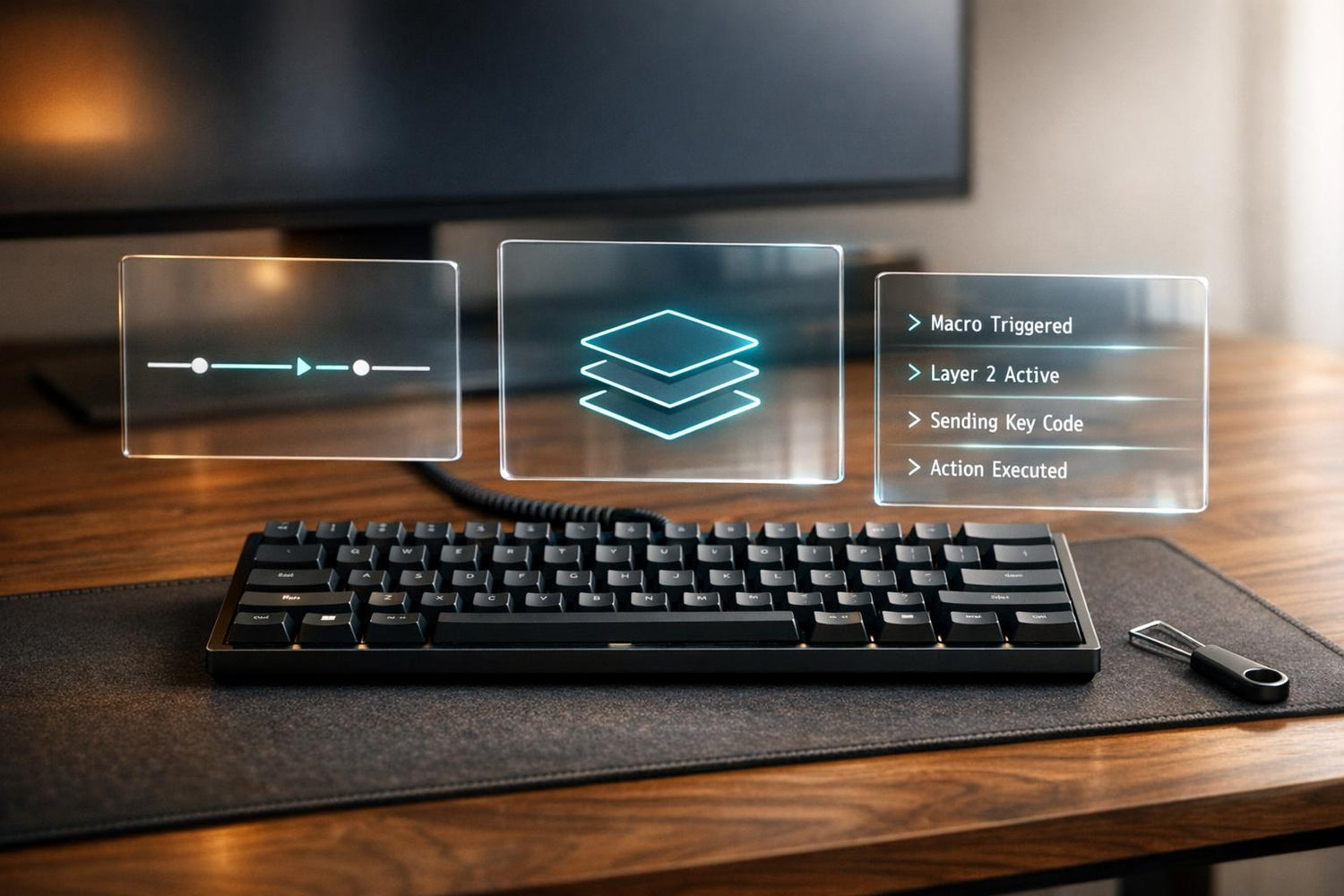
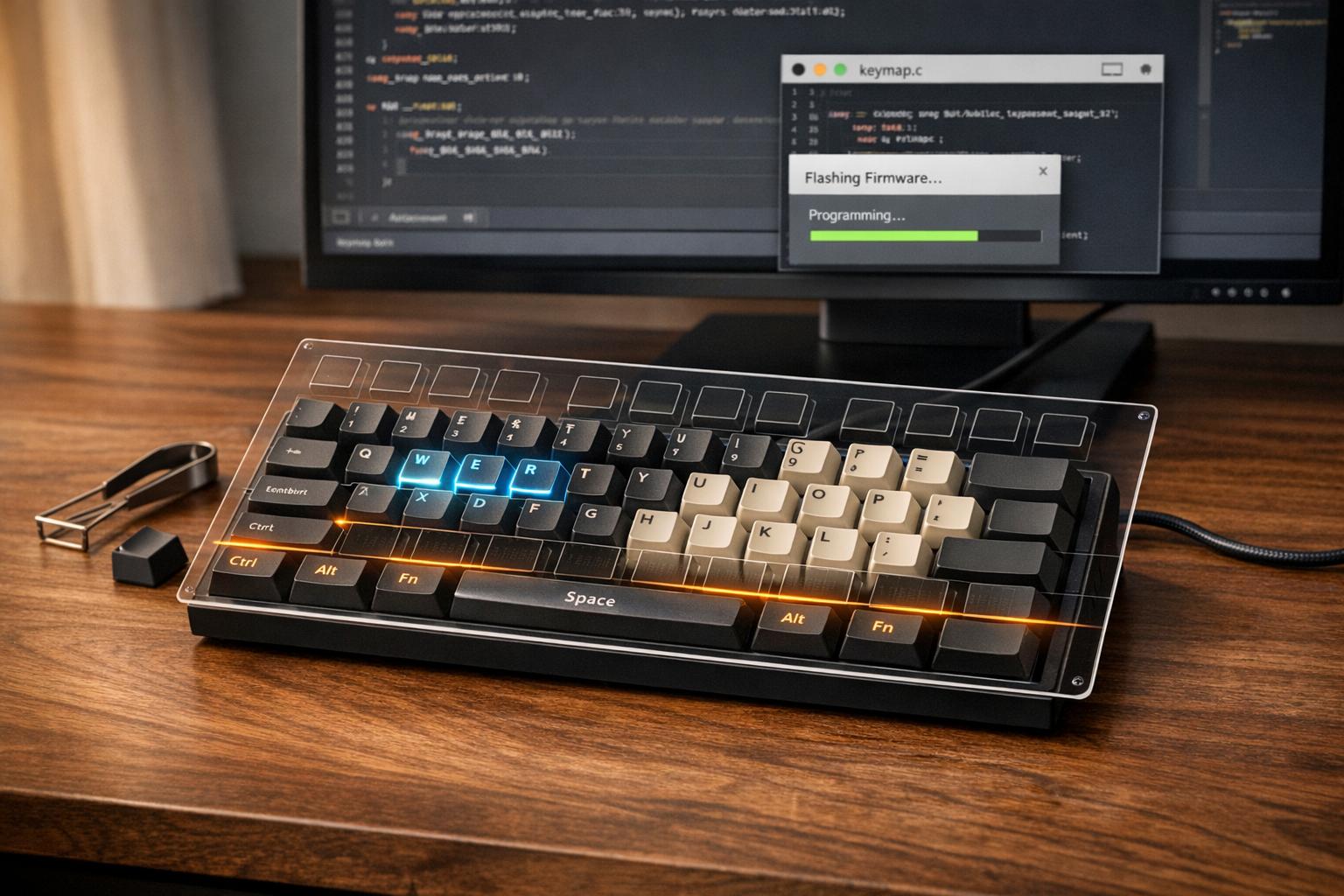
Macros on KeebsForAll keyboards using QMK let you perform multiple actions with a single keypress, but they can sometimes misbehave. Common issues include stuck keys, missing characters, or incorrect sequences. These problems often stem from timing conflicts, coding errors, or layer conflicts. Debugging is essential to ensure your macros work as intended.
Key Takeaways:
- Types of Macros: JSON-based (simple), C-based (complex), and dynamic (temporary).
- Common Issues: Syntax errors, firmware flashing problems, and layer conflicts.
-
Debugging Tips:
-
Enable debug logging by adding
CONSOLE_ENABLE = yesinrules.mk. - Use tools like QMK Toolbox, QMK CLI, or hid_listen for real-time feedback.
-
Adjust delays using
SS_DELAY()orTAP_CODE_DELAYfor better timing.
-
Enable debug logging by adding
- Prevent Problems: Write simple macros, validate syntax, and clear EEPROM if needed.
Debugging tools and proper testing help identify and fix these issues, ensuring smooth macro functionality. Read on for detailed troubleshooting methods and prevention strategies.
Writing QMK macros
sbb-itb-3cb9615
Common Causes of Macro Problems
When it comes to QMK, macro failures are often tied to coding errors, flashing mishaps, or layer conflicts. These issues can lead to unpredictable keyboard behavior, with macros either malfunctioning or refusing to work altogether. Let’s break down these common culprits to help you troubleshoot and get your macros running smoothly.
Syntax Errors in Macro Code
One of the most common reasons for macro issues is syntax errors. For instance, JSON macros often fail silently if you mix up prefixes. Stick to raw keycodes like LCTL and V instead of KC_LCTL, which won’t work without any warning. Similarly, in C-based macros, shortcuts like SEND_STRING() and SS_TAP() require the X_ prefix (e.g., X_ENT) rather than the KC_ prefix.
Another frequent pitfall is missing action keys in your macro array. Every object must include an action like beep, delay, or tap. Without these, the macro becomes invalid. Debugging can also be tricky if your debug messages don’t end with a newline character (\n), as QMK Toolbox and similar tools only display output per line.
Modifiers can cause headaches too. If a macro registers a modifier (like register_code(KC_LSFT)) but doesn’t unregister it, the modifier stays active. This can lead to stuck keys, requiring you to reset manually with clear_keyboard() or restart the keyboard. A quick way to check for this is by using a key tester to see if any modifiers are lingering.
Firmware Flashing Errors
Flashing errors can also trip you up, especially if your firmware file is too large. For example, microcontrollers like those on Planck boards have a 28,672-byte limit. If your firmware exceeds this, the flashing process can fail, potentially locking up the device in DFU mode. To fix this, you’ll need to flash a smaller, valid firmware file using a QMK flashing guide.
Incorrect bootloader settings are another common issue. If the rules.mk file specifies the wrong bootloader (e.g., atmel-dfu instead of caterina), the flashing tool won’t communicate properly with your keyboard.
If your macro changes don’t seem to take effect after flashing, the issue might lie with the EEPROM. Tools like VIA can override flash memory using EEPROM-stored settings. Clearing the EEPROM with Bootmagic or a QK_CLEAR_EEPROM keycode can resolve this. Keep in mind, however, that microcontroller EEPROMs have a limited lifespan - around 100,000 write cycles.
Layer Conflicts
Layer conflicts are another frequent cause of macro problems. QMK processes layers from the highest-numbered active layer down to Layer 0. If a higher layer has a non-transparent keycode, it can block a macro on a lower layer.
Momentary layer switching (using keys like MO, LM, TT, or LT) can also lead to stuck layers. This happens if the corresponding key on the destination layer isn’t set to transparent (KC_TRNS or the _______ alias). Without transparency, the firmware can’t register the release event needed to deactivate the layer. Using transparency on higher layers ensures that your macros on lower layers function correctly.
To pinpoint layer conflicts, enable debug logging and use layer_debug(). This will help you identify which layers are unexpectedly active and interfering with your macros.
Tools and Methods for Debugging Macros
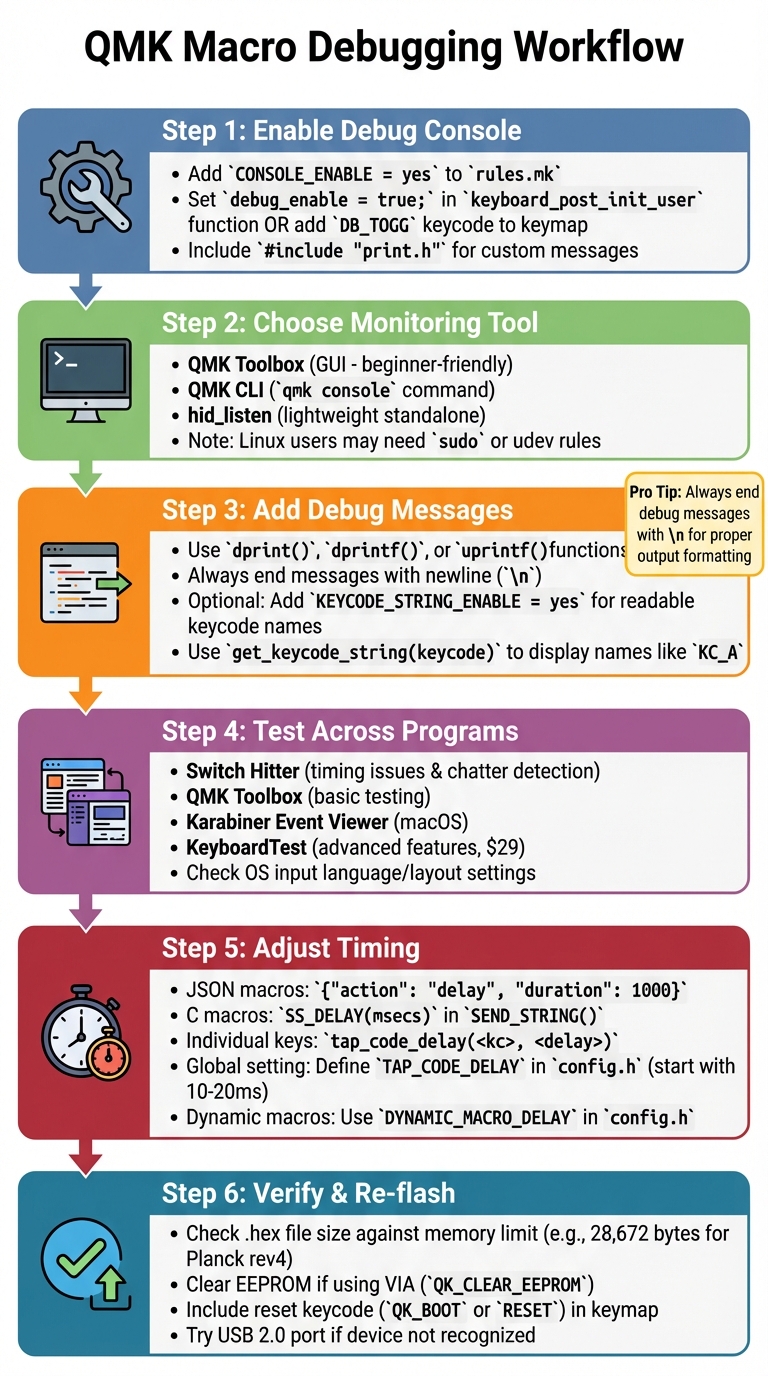
QMK Macro Debugging Workflow: Step-by-Step Troubleshooting Guide
Once you've identified common macro pitfalls, the next step is figuring out how to fix them. QMK provides several tools and techniques to help you track down and resolve issues. These tools let you see what's happening when you press a key, making it easier to pinpoint problems.
How to Use QMK Debug Logging
Debug logging is one of the most effective tools for troubleshooting macros. To start, enable console support by adding CONSOLE_ENABLE = yes to your keyboard's rules.mk file. However, this alone won't produce much output. You'll also need to activate debug mode by either setting debug_enable = true; inside the keyboard_post_init_user function in your keymap.c file or by adding the DB_TOGG keycode to your keymap.
If you'd like to send custom debug messages from your macro code, include #include "print.h" at the top of your C file. Then, use functions like dprint(), dprintf(), or uprintf() to send messages. Always end these messages with a newline to keep the output clear and readable.
To make logs easier to interpret, you can add KEYCODE_STRING_ENABLE = yes to your rules.mk file. This allows you to use uprintf("kc: %s\n", get_keycode_string(keycode)); to display human-readable keycode names, such as KC_A, instead of confusing hex codes. You can view your logs using tools like:
- QMK Toolbox: Ideal for beginners, thanks to its graphical interface.
-
QMK CLI: Use the
qmk consolecommand if you prefer working in the terminal. -
hid_listen: A lightweight standalone option. On Linux, you may need to run
hid_listenwithsudoor adjustudevrules if your device isn't detected.
Testing Macros in Different Programs
A macro might work perfectly in one application but fail in another. Testing your macros across various programs ensures compatibility. Specialized keyboard testing software can help verify that your macro sends the correct scan codes, virtual key codes, and BIOS codes.
Here are some tools you can use:
- Switch Hitter: Provides detailed logs and visual alerts for timing issues like "chatter" or accidental double-strikes.
- QMK Toolbox: Includes a basic testing feature, which is convenient if you're already using it to flash your keyboard with QMK.
- Karabiner Event Viewer: A great option for macOS users, as it displays hardware events specific to Mac systems.
- KeyboardTest: Offers advanced features like detecting "over-pressed" or "under-pressed" states. It costs $29 for a single license and includes batch mode testing.
Don't forget to check your operating system's input language and layout settings. Macros can produce different characters depending on whether you're using QWERTY, Colemak, or another layout. On macOS, Caps Lock macros require extra attention since the system adds an 80ms delay to prevent accidental activation. If timing issues persist across applications, you may need to tweak the delays, as explained below.
Adjusting Timing and Delays
Timing issues are a frequent source of macro problems. If your macro runs too quickly for the operating system or application to keep up, you'll need to slow it down.
In JSON-based keymaps, you can use {"action": "delay", "duration": 1000} to introduce a delay. In C keymaps, use SS_DELAY(msecs) within SEND_STRING(). For example: SEND_STRING("A" SS_DELAY(100) "B").
For more control over individual keycodes, use tap_code_delay(<kc>, <delay>) to set the delay between the "down" and "up" events. If the issue affects many keycodes, you can define TAP_CODE_DELAY in your config.h file to apply a global delay (in milliseconds) to all tap_code() functions. While the default is 0ms, starting with a delay of 10-20ms often resolves missed keystrokes.
For macros recorded dynamically, the DYNAMIC_MACRO_DELAY setting in config.h lets you adjust playback speed. If you need more advanced timing logic, such as a macro that changes behavior based on how quickly it's pressed again, use timer_read() to log the start time and timer_elapsed() to calculate the elapsed time.
How to Prevent Macro Problems
Avoiding macro issues starts with adopting smart development habits that can save you time and effort down the line.
Writing Better Macros
Keep your macros straightforward. They should handle simple tasks like typing a pre-defined phrase or toggling between applications. If you find yourself adding complex logic or multiple conditionals, it’s a good idea to create a custom keycode instead. Tackling these issues early helps you avoid common problems like syntax errors and layer conflicts.
When creating custom keycodes, always use SAFE_RANGE. This ensures your custom codes begin at a safe starting point, avoiding conflicts with standard QMK keycodes. Also, make sure the enumerated list of your custom keycodes is placed before the keymaps[] array and the process_record_user() function. This way, the compiler can properly recognize them.
For better readability, use #define to assign descriptive names to your keycodes. For example, #define ALT_TAB LALT(KC_TAB) is much easier to understand than raw keycode combinations. Avoid recursive dynamic macros - such as a macro that replays itself - as these can cause your keyboard to completely lock up.
Lastly, never store sensitive information like passwords or credit card numbers in macros. Since this data is stored as plain text in your firmware, it can be accessed by anyone with physical access to your keyboard.
By keeping macros simple and secure, and ensuring your firmware is up-to-date, you can sidestep many common issues.
Keeping Your Firmware Updated
Regularly running the qmk lint command is a great way to catch configuration errors and missing files before they turn into bigger problems. This can also help you avoid firmware flashing errors. Since QMK treats compiler warnings as errors, it prevents small mistakes from escalating into bigger firmware bugs.
If you’re using VIA, your keymap is stored in EEPROM. To ensure firmware updates take effect, clear the EEPROM using QK_CLEAR_EEPROM or the QMK Toolbox.
Testing Before You Flash
Once you’ve refined your macros and firmware, it’s time to test for compatibility.
Start by using QMK Configurator’s test mode to confirm that your keyboard’s switches are functioning properly before adding macro logic. Define your macros in a keymap.json file within the Configurator to avoid syntax errors.
Before flashing, check that your .hex file doesn’t exceed your keyboard’s memory limit (e.g., 28,672 bytes for a Planck rev4). Double-check your code for syntax issues to prevent unnecessary writes to your EEPROM.
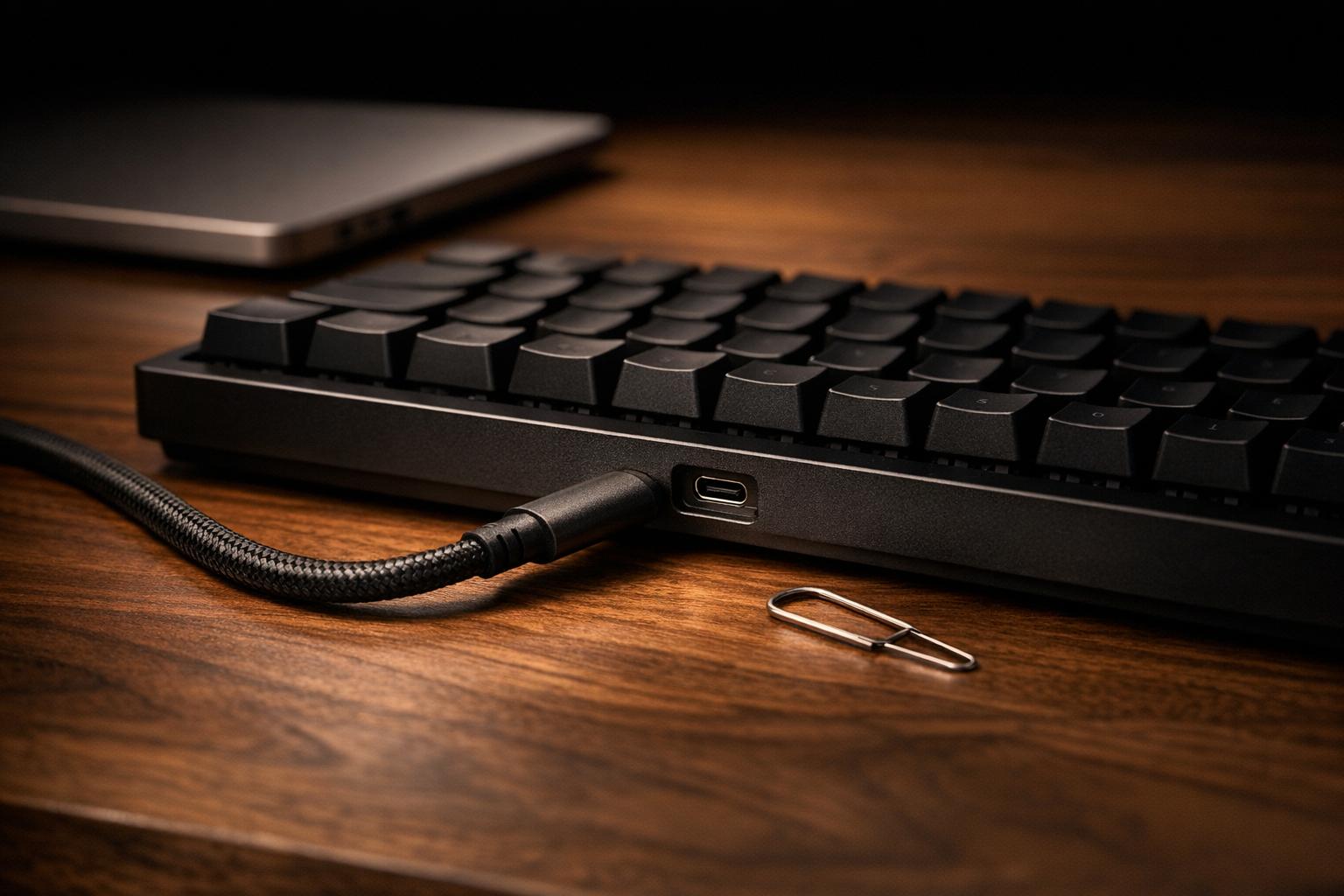
Always include a reset keycode like QK_BOOT or RESET in your keymap. This allows you to re-flash your keyboard if a macro causes it to freeze, saving you the hassle of opening the case to access the hardware reset button on the PCB. If your keyboard isn’t recognized during testing, try switching from a USB 3.x port to a USB 2.0 port.
Taking these steps ensures a smoother experience when working with macros and firmware.
Summary and Resources
To enable the debug console, set CONSOLE_ENABLE = yes in your rules.mk file. You can monitor the output using tools like QMK Toolbox, QMK CLI (qmk console), or hid_listen. Activate debug mode by either using the DB_TOGG keycode or setting debug_enable=true in your keymap.c. For more detailed tracking, include print.h in your code and use uprintf() for monitoring macro events. Don’t forget to end all debug messages with a newline (\n).
If your macros type too quickly or miss characters, tweak the timing with SS_DELAY(ms) for strings or adjust TAP_CODE_DELAY in config.h. For macros defined in info.json, use a JSON linting tool to validate your syntax and catch any errors before compiling. These steps help address timing and syntax issues effectively.
Key Debugging Methods
Combining console logging with timing adjustments is a reliable way to troubleshoot. In your rules.mk file, enable human-readable keycodes by adding KEYCODE_STRING_ENABLE = yes. Then, use get_keycode_string(kc) to display key names (like KC_A) instead of hexadecimal values. You can also add custom logging in your process_record_user function to track the matrix row, column, and key status during each event.
If you're using Linux and your device isn’t detected, run hid_listen with sudo or set up a udev rule to ensure proper access. Mastering these debugging techniques will help you fine-tune your keyboard’s performance, and tools from KeebsForAll can further enhance this process.
KeebsForAll Products and Guides

For smoother customization and maintenance, KeebsForAll offers tools and components tailored to keyboard enthusiasts. The KFA Switch Opener ($19.00) simplifies tasks like lubricating your switches or spring swaps, making it easier to refine your build. To improve typing feel, Krytox 205 g0 Lubricant (starting at $7.95) reduces friction and enhances switch performance.
The Freebird keyboard series is another standout option, featuring hot-swappable PCBs and multi-layout support in 60%, 75%, and TKL formats. These keyboards are perfect for testing QMK macros across various configurations. With CNC aluminum cases and USB-C connectivity, Freebird kits range in price from $160.00 to $249.99. For beginner-friendly guides and in-stock components to support your QMK projects, visit KeebsForAll.
FAQs
How can I tell if my macro issue is related to timing, layers, or code?
When troubleshooting a macro issue in QMK, it's helpful to break the process into a few key steps:
-
Check Timing: Try adding delays using functions like
wait_ms(). Sometimes, macros fail because they're executing too quickly for the system to handle. - Inspect Layers: Make sure layer switching or interactions between layers aren't interfering with your macro's behavior.
- Debug the Code: Use QMK's debugging tools to trace how your macro executes. Pay close attention to how keypresses and releases are handled in your code.
By starting with delays, then reviewing layers, and finally debugging systematically, you can pinpoint the root of the problem more efficiently.
Why do my macros work in one app but fail in another?
Macros can function differently depending on the app you're using. This happens because each app may process input uniquely, face potential security restrictions, or handle input conflicts in its own way. Additionally, differences in firmware and software configurations, such as those in QMK or VIA, can also affect how macros execute. To ensure smooth operation, it’s a good idea to review both your firmware settings and the input behavior of the specific app you're working with.
What’s the fastest way to recover from a stuck macro?
To recover quickly from a stuck macro, the best approach is to stop or reset the macro recording process. This is often achieved by pressing a designated key or key combination meant to abort or reset macros. If that doesn’t work, reinitializing the keyboard firmware can clear the macro buffer, effectively resolving the problem.

Leave a comment
This site is protected by hCaptcha and the hCaptcha Privacy Policy and Terms of Service apply.