
Bluetooth Keyboard Lag: Causes and Fixes
[ Back to Mechanical Keyboards 101 ]Bluetooth keyboard lag is a common issue that interrupts typing and slows down productivity. It happens when there's a delay between pressing a key and seeing the input on screen. This delay becomes noticeable above 50 milliseconds and can feel frustrating at 100 milliseconds or more. Common symptoms include:
- Dropped keystrokes (missing characters)
- Text bursting (letters appear in a sudden flood)
- Character repetition (one press results in multiple letters)
Most lag cases (60%) are caused by wireless interference, while 20% stem from low batteries. Other factors include outdated drivers, physical obstacles, or high system resource usage. Thankfully, most issues can be fixed without replacing your keyboard. Here's a quick breakdown of solutions:
- Replace or recharge batteries: Ensure they’re above 30% capacity.
- Reduce interference: Use USB 2.0 ports, keep devices away from Wi-Fi routers, and switch to the 5 GHz band.
- Update drivers: Keep your Bluetooth and keyboard drivers up to date.
- Reposition the receiver: Use a USB extension cable for better signal strength.
- Disable power-saving features: Turn off USB Selective Suspend and similar settings.
If these steps don’t work, test your keyboard on another device to rule out hardware issues. Persistent lag might mean it’s time for a new keyboard. For a better typing experience, consider custom mechanical keyboards with tri-mode connectivity (Bluetooth, 2.4 GHz, or wired) and low-latency performance.
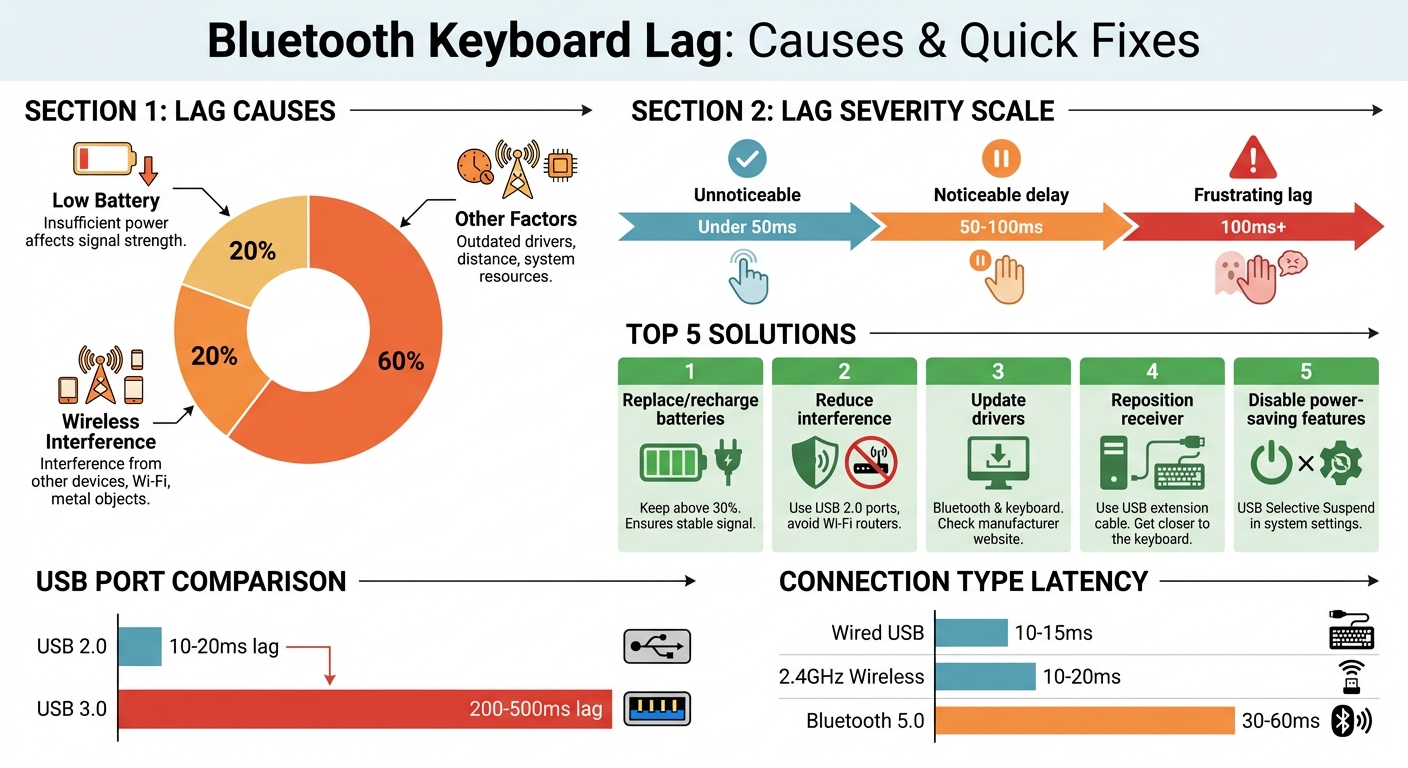
Bluetooth Keyboard Lag Causes and Solutions Statistics
How to fix wireless keyboard lag
sbb-itb-3cb9615
What Causes Bluetooth Keyboard Lag
Bluetooth keyboard lag often stems from interference or other factors affecting the 2.4 GHz frequency band. Knowing the root causes can help you troubleshoot and resolve delays without the need to replace your keyboard. Let’s break down the main culprits behind input lag and how they impact performance.
Low Battery or Power-Saving Mode
A low battery is responsible for lag in about 20% of cases. As the battery drains, the keyboard’s transmission strength weakens, which can lead to delays. Power-saving modes, designed to conserve energy, can also slow response times to over 100 ms. Signal issues may begin when the battery drops below 40–50% capacity. To avoid lag, recharge or replace batteries once they hit 30%. Additionally, some operating systems like Windows use features such as "USB Selective Suspend" to save power, which can cause brief delays or even missed keystrokes.
Wireless Signal Interference
Bluetooth keyboards share the crowded 2.4 GHz frequency with Wi-Fi routers, microwaves, baby monitors, and other devices. This interference accounts for about 60% of lag cases. When interference occurs, signals may be blocked or delayed, sometimes resulting in keystrokes appearing in bursts. Even USB 3.0 ports can create noise that causes lag of 200–500 ms - much higher compared to the 10–20 ms delay seen with USB 2.0 ports. Metal objects, like desks or computer cases, can further disrupt signals by reflecting or shielding them.
Physical Obstacles and Distance
Bluetooth keyboards typically have a maximum range of about 30 feet (10 meters). However, physical barriers like walls, thick desks, or metal surfaces can significantly reduce this range. Metal, in particular, reflects radio waves, which can disrupt the connection between the keyboard and the receiver. Even small obstacles, such as monitors or other electronic devices, can lead to noticeable delays.
Outdated Drivers or Compatibility Issues
Software problems can also contribute to lag. Outdated or corrupted drivers may disrupt communication between the keyboard and the computer, causing missed inputs or erratic behavior. Compatibility issues can arise when using devices with mismatched Bluetooth versions, such as pairing a Bluetooth 4.2 keyboard with a Bluetooth 5.3 adapter. This mismatch can lead to inconsistent performance. Additionally, accessibility features like "Filter Keys" on Windows or "Slow Keys" on macOS can introduce intentional delays that mimic lag.
System Resource Constraints
Even with a strong wireless connection, high CPU or RAM usage can delay keystroke processing. Running resource-heavy programs - like video editing software, numerous browser tabs, or system scans - can cause your computer to struggle with real-time input. Connecting more than seven Bluetooth devices at once can also overwhelm bandwidth, leading to dropped signals and lag. Reducing system load can often restore normal keyboard responsiveness.
How to Fix Bluetooth Keyboard Lag
If you’re dealing with Bluetooth keyboard lag, the solution often lies in pinpointing the cause and applying fixes step by step. Here’s how you can tackle the issue effectively.
Check and Replace Batteries
Low battery levels - especially under 30% - can lead to noticeable lag. On macOS, you can check the battery percentage by going to System Settings > Bluetooth. For Windows devices, battery reporting isn’t always reliable, so replacing the batteries outright is often the simplest approach.
Steps to try:
- Turn the keyboard off, remove the batteries, and wait at least 30 seconds before reinserting them.
- If your keyboard uses AA or AAA batteries, replace them with fresh ones instead of reusing batteries from other gadgets.
- For keyboards with built-in batteries, plug them into a charger for a few minutes to stabilize the connection.
- Inspect the battery compartment for corrosion or dirt on the metal contacts and clean them if needed.
If the issue persists, move on to resetting the Bluetooth connection or consult Mechanical Keyboards 101 for more basics.
Reconnect and Reconfigure the Bluetooth Connection
On Windows, open Device Manager, uninstall the Bluetooth adapter or keyboard, and restart your computer. If the driver doesn’t automatically reinstall, go to Action > Scan for hardware changes in Device Manager.
If reconnecting doesn’t fix the lag, interference might be at play.
Reduce Wireless Interference
Interference is a major cause of Bluetooth keyboard lag, accounting for around 60% of cases. To minimize it:
- Use USB 2.0 ports (black or white) for wireless receivers instead of USB 3.0 ports (blue), as the latter can create electrical noise that increases lag from 10–20 ms to as much as 200–500 ms.
- A USB extension cable (3 to 6 feet, costing $5–$10) can help position the receiver closer to the keyboard.
- Switch your Wi-Fi router to the 5 GHz band instead of 2.4 GHz to reduce competition for Bluetooth bandwidth.
- Keep at least 3 to 6 feet between your Wi-Fi router and the keyboard receiver.
- Disconnect unused Bluetooth devices and ensure there’s a clear line of sight between the keyboard and the receiver. Avoid placing the receiver behind or under metal surfaces like desks or cabinets.
If interference isn’t the issue, outdated drivers might be the culprit.
Update Keyboard Drivers
Outdated or corrupted drivers often cause Bluetooth lag problems. Here’s how to update them:
- Right-click the Start button and open Device Manager.
- Expand the Bluetooth or Keyboards section.
- Right-click your Bluetooth adapter or keyboard, select Update driver, and choose Search automatically for drivers.
- Restart your PC after the update. If Windows doesn’t find a new driver, visit the manufacturer’s website for the latest version.
Additionally, adjust power settings in Device Manager. Right-click your Bluetooth adapter, go to Properties > Power Management, and uncheck Allow the computer to turn off this device to save power. This prevents the keyboard from entering a low-power state that can cause lag.
Lastly, check Windows Update for any optional driver updates that might not install automatically (go to Settings > Windows Update) to ensure everything is up to date.
Diagnosing Ongoing Lag Issues
When the usual fixes don't resolve lag, these steps can help you identify the root cause.
Test the Keyboard on Other Devices
Start by connecting your keyboard to a different device - be it a computer, tablet, or smartphone. If the lag disappears, the problem likely lies with the original device's software or resource management. However, if the lag persists, the issue is probably with the keyboard itself, such as faulty hardware or a weak battery. This simple test helps determine whether the problem is device-related or keyboard-specific.
Monitor System Resource Usage
Lag often becomes noticeable when system resources, like CPU or memory, are heavily taxed - usually beyond 80% utilization. Open Task Manager (Ctrl+Shift+Esc on Windows) or Activity Monitor (on Mac), and sort processes by CPU or Memory usage. While typing, watch for resource spikes that align with the delays. If high usage coincides with the lag, your device's performance is likely the bottleneck rather than the keyboard. Compare these findings with earlier symptoms to narrow down the issue.
Verify Bluetooth Signal Strength
For wireless keyboards, a weak Bluetooth connection could be the culprit. Check for errors in Device Manager, which may indicate an unstable connection. You can also use tools like TestLatency.com or Keyboard Tester to measure the delay between keypresses and on-screen responses. Bluetooth 5.0 typically offers latency between 30–60 ms, while older versions may range from 60–100 ms. If your results exceed these ranges, weak signals or interference may be to blame.
Additionally, ensure accessibility settings that delay keystrokes are disabled. On Windows, check Power Options for USB selective suspend and turn it off to prevent the Bluetooth transceiver from powering down during use.
These diagnostic methods can clarify whether the issue requires hardware replacement or further troubleshooting, helping you make informed decisions about upgrades or repairs.
When to Replace Your Hardware
Sometimes, no amount of troubleshooting will bring your keyboard back to life. When standard fixes fail to restore performance, it’s probably time to replace the hardware.
Lag Persists Despite Fixes
If lag continues across multiple devices, the problem likely lies with the keyboard's internal hardware rather than the system or software. Persistent lag often points to failing circuitry, degraded wireless components, or other internal issues that aren't worth repairing. Keyboards older than five years are especially vulnerable to this kind of wear and tear, as components like capacitors naturally degrade over time.
"If the keyboard lag continues to be experienced on several devices, the keyboard itself could be the issue." - MelGeek
This kind of ongoing lag suggests that repairs won’t be enough to restore consistent performance.
Visible Physical Damage
If your keyboard shows signs of melted plastic, warped keys, liquid damage, or a cracked USB receiver, it’s time for a replacement. These issues can compromise the keyboard’s ability to connect properly. Even if it seems to work intermittently, physical damage often worsens over time, eventually leading to complete failure.
Battery Problems
Swelling or leaking batteries are a clear sign that you need to replace your keyboard immediately. Even when batteries appear to have 40–50% charge left, failing power management can cause lag or inconsistent performance. If new batteries don’t solve the issue, the internal power circuitry may be failing. Rechargeable batteries that no longer hold a charge can also disrupt the wireless signal, leading to unreliable performance.
Upgrading to Custom Mechanical Keyboards
When traditional fixes don’t solve your keyboard woes, it might be time to consider upgrading your hardware. A custom mechanical keyboard can offer the kind of stable, low-latency performance that standard keyboards often struggle to deliver.
Benefits of Custom Mechanical Keyboards
Custom mechanical keyboards stand out for their reliable connectivity and performance. Unlike Bluetooth keyboards that can suffer from signal interference and battery issues, many custom boards support tri-mode connectivity. This means you can seamlessly switch between Bluetooth, 2.4 GHz wireless, or a wired USB connection, depending on your needs. For tasks requiring low latency, the 2.4 GHz or wired modes are ideal.
Polling rates are another area where custom keyboards shine. While standard keyboards typically operate at 125Hz (sending data every 8ms), custom mechanical keyboards often boast polling rates between 1000Hz and 8000Hz. This reduces the delay between pressing a key and your computer registering it to as little as 0.125ms. For context, any response time under 30ms feels smooth, while delays above 50ms start to feel sluggish, and anything over 100ms is noticeably slow.
| Connection Type | Average Latency | Best Use Case |
|---|---|---|
| Wired USB | 10–15ms | Competitive gaming & high-speed typing |
| 2.4GHz Wireless | 10–20ms | Productivity & clean desk setups |
| Bluetooth 5.0 | 30–60ms | General office use |
Custom keyboards don’t just stop at connectivity - they also excel in precision. They use high-quality mechanical switches and often support customizable firmware like QMK or Vial, which lets you fine-tune settings like debounce times. For those unfamiliar, debounce time is the delay added to prevent accidental double presses. Competitive boards typically set this between 1ms and 5ms, striking the perfect balance between speed and accuracy.
Switches also play a role in reducing delays. Linear switches, such as Cherry MX Reds or optical switches, are known for their near-instantaneous response. Plus, many custom keyboards come with hot-swappable PCBs, making it easy to replace individual switches without soldering. This not only extends the keyboard’s lifespan but also allows you to experiment with different switch types to suit your preferences.
With these features, custom mechanical keyboards provide a level of speed and reliability that’s hard to match.
Where to Find Quality Keyboards
If you’re ready to make the switch, check out KeebsForAll (https://keebsforall.com). They offer a wide selection of custom mechanical keyboards, including models with tri-mode connectivity. You’ll also find essential components and a second-hand marketplace at https://kfamarketplace.com. Domestic orders usually arrive within 5–7 business days, while international shipping takes about 7–16 days.
Conclusion
Dealing with Bluetooth keyboard lag can be frustrating, but the good news is that it’s usually an easy problem to solve. In fact, wireless interference accounts for about 60% of lag issues, with low batteries causing roughly 20%, and outdated drivers or excessive distance making up the rest. Luckily, these problems often have straightforward solutions.
Start by tackling the basics. Replace your keyboard batteries before they drop below half charge, plug your wireless receiver into a USB 2.0 port instead of USB 3.0, and switch your Wi-Fi router to the 5 GHz band to minimize interference. These small adjustments can often resolve the most common causes of lag.
Software tweaks can also make a big difference. Disabling features like USB Selective Suspend or Filter Keys (sometimes called Slow Keys) and keeping your drivers updated can address lag that’s tied to your computer’s operating system rather than the keyboard itself. If none of these steps work, it might be time to consider upgrading your hardware.
For persistent lag issues, especially across multiple devices, investing in a better keyboard could be the answer. Custom mechanical keyboards are known for their reliability and low-latency performance, often reducing input lag to as little as 1ms.
If you’re ready to upgrade, check out KeebsForAll’s curated collection of high-performance custom mechanical keyboards for a smoother, lag-free typing experience.
FAQs
What can I do to fix Bluetooth keyboard lag caused by wireless interference?
To cut down on Bluetooth keyboard lag caused by wireless interference, try repositioning your keyboard and other Bluetooth devices away from common culprits like Wi-Fi routers, microwaves, and cordless phones. These devices often share similar frequencies with Bluetooth and can mess with your connection.
Another helpful tip: if your Wi-Fi network allows it, switch to the 5 GHz band instead of the 2.4 GHz band. Bluetooth operates mainly on the 2.4 GHz spectrum, so using the 5 GHz band can ease congestion and reduce interference. These small tweaks can make a big difference in your keyboard's responsiveness and performance.
What can I do if updating drivers doesn’t resolve my Bluetooth keyboard lag?
If updating your drivers doesn’t solve the lag issue, the next step is to check your Bluetooth connection. Make sure the keyboard is within range and that the signal isn’t being disrupted by other devices or physical obstacles. Even something as simple as a wall or another electronic device can interfere with the connection.
Another thing to look at is your system’s performance. Close any unnecessary apps or processes that might be hogging CPU or memory resources. When your system is overloaded, it can slow down input response times.
You might also want to tweak your keyboard settings. For instance, try disabling any power-saving modes or enabling a higher polling rate if your keyboard supports it. If none of these fixes work, unpair and re-pair the keyboard or reset it to its factory settings. These steps often help restore smooth performance and responsiveness.
When is it time to replace a Bluetooth keyboard due to lag issues?
If your Bluetooth keyboard still lags despite trying typical fixes, it might be a sign that it’s time for a replacement. Ongoing issues like this can stem from hardware defects or outdated firmware that can’t be resolved through software tweaks.
Before making the switch, double-check for other potential causes such as signal interference, low battery levels, or outdated drivers. If none of these seem to be the culprit, upgrading to a dependable, well-built keyboard could make a noticeable difference in both your typing comfort and productivity.