
How Custom Keyboards Reduce Typing Fatigue
[ Back to Mechanical Keyboards 101 ]Typing fatigue is a common issue caused by repetitive motion and poor keyboard ergonomics, leading to discomfort in your hands, wrists, and forearms. Custom mechanical keyboards help solve this by allowing you to adjust key elements like switch weight, layout, and typing angle to fit your preferences. Key benefits include:
- Lighter switches: Reduce force needed for keystrokes, easing muscle strain.
- Compact and split layouts: Minimize hand movement and promote natural wrist positioning.
- Adjustable angles: Improve posture and reduce wrist tension.
- Keycap customization: Sculpted profiles and textured surfaces lower finger travel and improve grip.
- Programmable keys: Reduce repetitive motions by remapping shortcuts.
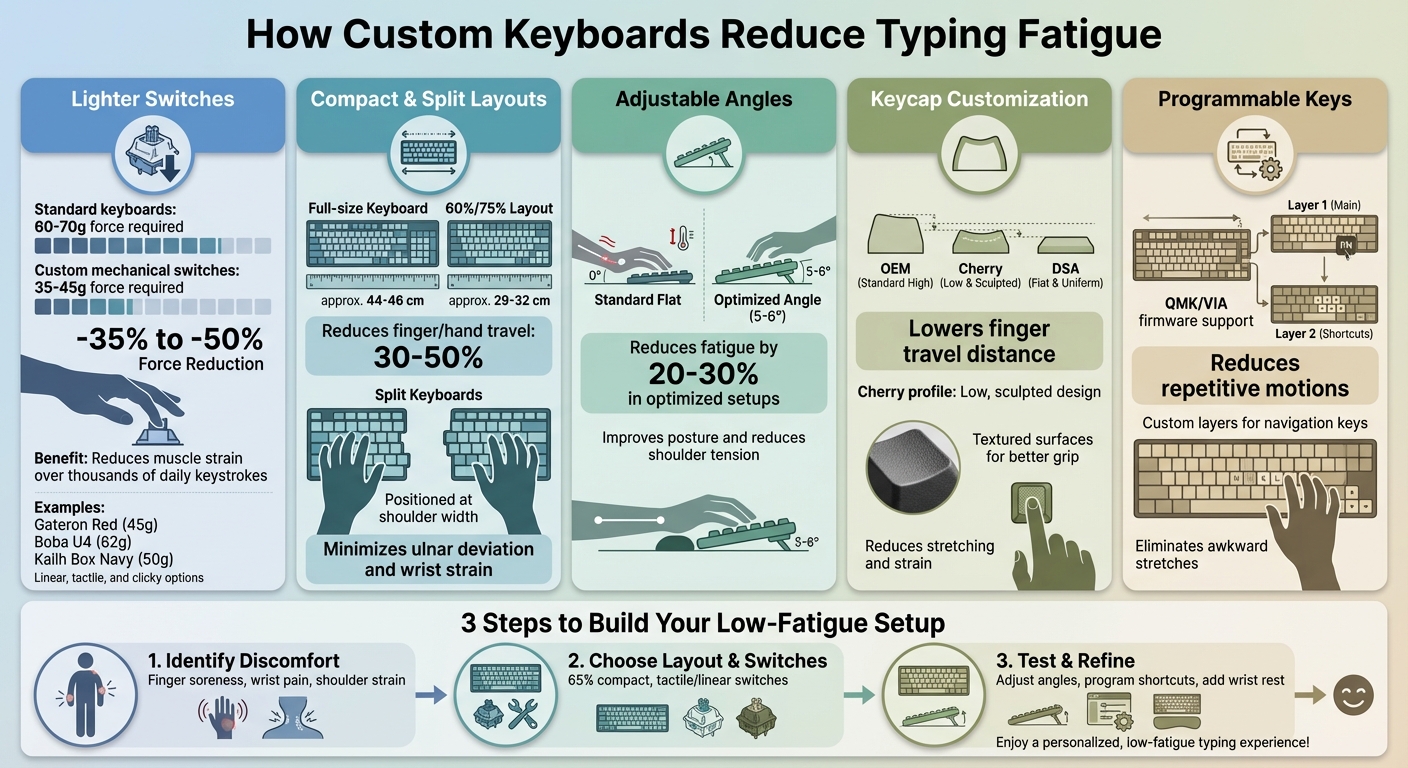
Custom Keyboard Features That Reduce Typing Fatigue
How Can Ergonomic Keyboard Angles Improve Typing Posture? - The Hardware Hub
How Custom Mechanical Keyboards Reduce Typing Fatigue
Custom mechanical keyboards allow you to fine-tune elements like switch weight, layout, and typing angle to align with your natural hand position. By minimizing the effort needed for keystrokes and reducing finger travel, these keyboards address some of the primary causes of repetitive strain. Let’s dive into how specific adjustments - like lighter switches and ergonomic layouts - can make typing less tiring.
Lighter Switches That Require Less Effort
The weight of a keyboard switch significantly impacts the amount of force needed to press a key. While standard keyboards often require 60–70g of force per keystroke, lighter mechanical switches typically need only 35–45g. Over the course of thousands of keystrokes each day, this reduction can noticeably ease muscle strain.
Take linear switches like Gateron Red, for instance, which have a 45g actuation force and offer smooth, effortless keystrokes. Tactile switches, such as the Boba U4 (62g), provide a subtle bump for feedback without requiring excessive force. Meanwhile, clicky switches like Kailh Box Navy (50g) deliver an audible click, making them ideal for precision typists.
Another key factor is the activation depth, typically between 1.2mm and 2.0mm for many mechanical switches. This means keystrokes register before the key is fully pressed, reducing unnecessary force and promoting efficient muscle memory. For those prone to fatigue, experts often recommend switches with an actuation force below 50g.
Compact and Split Layouts for Improved Ergonomics
Compact keyboard layouts, such as 60% or 75% designs, bring keys closer together, cutting down on finger and hand travel by as much as 30–50% compared to full-size keyboards. These layouts keep your hands centered and reduce the need to stretch for common keys by using programmable layers for modifiers.
For example, KeebsForAll's Freebird60 and Freebird75 keyboards showcase this compact efficiency. The Freebird60 measures 11.6″ x 4.2″ with a 5° typing angle, while the Freebird75 measures 12.8″ x 5.5″ with a 6° angle. Both models feature hot-swappable switches and support multiple layouts, making it easy to tailor your setup to your hand size and typing style. Prices start at $160.00 for the Freebird60 and $199.00 for the Freebird75, offering a balance of functionality and ergonomic design.
Split keyboards take ergonomics a step further by dividing the keyboard into two halves, which can be positioned at shoulder width. This design reduces ulnar deviation - when your wrists bend sideways - by allowing your hands to rest in a more natural, shoulder-width position. This setup can significantly reduce wrist strain during extended typing sessions.
Adjustable Angles and Support for Better Posture
Beyond switches and layouts, adjustable angles and supportive features can further enhance typing comfort. The typing angle directly influences wrist and forearm alignment. The Freebird series, for instance, includes built-in typing angles - 5° for the Freebird60 and 6° for both the Freebird75 and Freebird TKL - that help maintain a neutral wrist position and reduce shoulder tension.
Wrist rests are another valuable addition, providing cushioning to prevent wrist hyperextension. Low-profile keyboard cases also lower the overall key height, minimizing the need to lift your fingers excessively. Together, these features encourage a neutral posture and can reduce fatigue by 20–30% in optimized setups.
Customizing Switches and Stabilizers for Comfort
Choosing the Right Switch Weight and Feel
Customizing switch weight is a smart way to reduce typing effort and keep your hands feeling comfortable during long sessions.
Switch weight is measured by the actuation force in grams, which is essentially how much pressure you need to press a key. Lighter switches, typically in the 35–45g range, can help reduce finger strain significantly. However, it’s important to strike a balance - too light, and you might find yourself accidentally pressing keys.
- Linear switches (e.g., Gateron Reds) offer a smooth, uninterrupted press without any tactile bump. They’re great for effortless typing, though they might take some getting used to.
- Tactile switches provide a slight bump when the key actuates, giving you feedback that helps control your typing force and reduces unnecessary pressure over time.
- Clicky switches add an audible click when activated, which can help prevent over-pressing by signaling when a key has been fully engaged.
One of the perks of custom keyboards is the ability to fine-tune switches without replacing them entirely. For instance, you can swap out springs to adjust the actuation force. If you’re experiencing finger soreness, lighter springs can make a noticeable difference, easing the strain while still keeping your typing accurate and controlled.
Once you’ve got the right switches, the next step is to make them even smoother with proper lubrication.
Lubricating for Smoother Keystrokes
If you want to take your typing experience to the next level, lubrication is the key to achieving buttery-smooth keystrokes. It’s not just about comfort - it’s about reducing the friction that can make typing feel scratchy and tiring.
Lubrication works by minimizing friction between the moving parts of switches and stabilizers. Without it, switches can feel rough and require more effort to press. A well-lubed switch, on the other hand, glides effortlessly, making long typing sessions far more comfortable.
A popular choice for this task is Krytox 205 g0, a high-quality lubricant. You’ll need to apply it sparingly to specific areas like the switch housing rails, stem contact points, and springs. Using a small brush ensures precise application. For stabilizers, lubricating the contact points eliminates rattling and ensures smooth, consistent key travel.
To make the process easier, tools like the KFA Switch Opener from KeebsForAll are incredibly helpful. This tool allows you to safely open switches without damaging their components. Pair it with lube brushes and a stem holder, and you’ve got everything you need to mod your switches at home. The result? Lubed switches that can reduce the force needed for typing by 20–30%, making a full day of typing far less taxing on your fingers.
sbb-itb-3cb9615
Other Customization Options That Reduce Fatigue
There’s more to reducing typing fatigue than just optimizing switches. Let’s dive into a few additional tweaks that can make a big difference in comfort.
Keycap Shape and Texture
The shape and texture of your keycaps play a big role in how comfortable typing feels. Sculpted keycap profiles are designed to follow the natural curve of your fingers, helping to minimize stretching and strain.
Take Cherry profile keycaps, for example. These are a favorite among typists looking to reduce hand fatigue. Their low, sculpted design mirrors the contour of your fingertips, making it easier to locate keys without unnecessary movement. This keeps your fingers closer to the home row and cuts down on travel distance - a game-changer during long typing sessions. Brands like KeebsForAll offer Cherry profile keycap sets made from durable PBT material, ensuring both comfort and longevity.
Texture is equally important. Textured keycaps provide better grip, which means your fingers are less likely to slip during fast typing. This improved control lets you type with less effort, reducing strain on your hands. Smooth keycaps might look sleek, but they can require more conscious effort to maintain accuracy, which can quickly tire out your fingers.
Beyond the physical design of the keys, customizing how they function can further ease the strain.
Programmable Keys and Macros
Programmable keys are a lifesaver when it comes to cutting down on repetitive motions. By remapping keys or setting up macros, you can eliminate awkward stretches and extra keystrokes, making your typing experience much more efficient. This is especially useful if you rely heavily on keyboard shortcuts or repeat the same tasks throughout the day.
Custom mechanical keyboards with programmable firmware like QMK or VIA allow you to create layers - essentially alternate layouts you can toggle between instantly. For instance, you could program a layer that places navigation keys (like arrows or page up/down) right under your right hand, so there’s no need to reach across the keyboard. This not only reduces hand movement but also builds muscle memory, making typing faster and less taxing. For those managing conditions like carpal tunnel or arthritis, macros can be a game-changer, letting them complete tasks with minimal effort.
Another perk? You can tailor the keyboard layout to match your natural hand positioning. By placing frequently used keys where your fingers naturally rest, you can maintain a neutral hand position and avoid unnecessary reaching, keeping your hands comfortable throughout the day.
Building Your Low-Fatigue Keyboard Setup
Creating a keyboard setup that reduces strain and promotes a natural hand posture can greatly improve your typing comfort. Here’s how to build one step by step.
Step 1: Identify Your Discomfort
Start by pinpointing where you feel discomfort during your daily typing sessions. For example:
- Finger soreness might mean you're pressing keys too hard or using switches that require too much force.
- Wrist pain could suggest poor hand positioning or an awkward keyboard angle.
- Shoulder or neck discomfort may indicate your setup forces you to reach too far.
Pay attention to when and where these issues arise over several days. If you notice excessive force or over-travel causing strain, you’ll know to adjust your switch type. These observations will guide your decisions in the next steps.
Step 2: Choose the Right Layout and Switches
A well-chosen layout and switches can significantly reduce typing fatigue. Here’s how to decide:
- Layout: A compact 65% keyboard is a great choice to minimize reaching and reduce shoulder strain. Split keyboards are another option, as they allow for a more natural hand position. If you need a number pad but want to keep your mouse closer, consider a full-size keyboard with a detachable numpad.
- Switches: Your typing style plays a big role here. If you tend to type heavily, medium-weight tactile switches provide satisfying feedback without requiring a full press to register. For those dealing with finger soreness, lighter linear switches can help. Before committing, use a switch tester to try out various options over a few typing sessions to find what feels best for you.
Once you’ve chosen your layout and switches, it’s time to fine-tune your setup for maximum comfort.
Step 3: Test and Refine Your Setup
With your keyboard assembled, spend a few weeks testing and adjusting your setup. Keep these tips in mind:
- Desk and keyboard position: Set your desk height so your elbows form a 90° angle, keeping your forearms parallel to the floor. Experiment with keyboard angles - many users prefer a slight tilt of 5–6 degrees, though you might find a flat or negative tilt more comfortable.
- Hot-swappable keyboards: If you want flexibility, consider hot-swappable options like those from KeebsForAll. These allow you to easily swap out switches and try different configurations without soldering.
- Keycap profiles and extras: Test different keycap profiles, like KeebsForAll’s durable Cherry-profile PBT keycap sets. Add a wrist rest if needed to support your hands and reduce strain.
- Shortcut programming: Use QMK or VIA firmware to program frequently used shortcuts into layers, reducing awkward and repetitive movements.
For budget-friendly options, check out second-hand keyboards at kfamarketplace.com. You can customize these with new switches or keycaps from KeebsForAll’s collection.
Even small tweaks can have a big impact. Try lubricating your switches, swapping to lighter springs, or remapping keys to better suit your workflow. These adjustments turn your keyboard into a personalized tool designed to keep you comfortable throughout the day.
Conclusion: Reduce Fatigue Through Customization
Typing fatigue doesn’t have to be an unavoidable part of your day. With custom mechanical keyboards, you have the power to fine-tune every detail that impacts your comfort. From lighter switches that make typing easier on your fingers to compact layouts that promote a natural hand position, these keyboards allow you to create a setup tailored to your needs. You can tweak the angle, lubricate switches for smoother keystrokes, and even program macros to cut down on repetitive motions. Unlike standard keyboards that impose a one-size-fits-all design, a custom keyboard adapts to you - your hands, your typing style, and your specific pain points. Whether you prefer the feedback of tactile switches or the ease of linear switches, the right choices can significantly reduce strain and keep you comfortable during long typing sessions.
Customizing your keyboard doesn’t just improve comfort - it also helps you find the perfect tools for your setup. KeebsForAll offers hot-swappable Freebird keyboards starting at $160, along with a variety of switches, premium lubricants like Krytox 205 g0, and durable keycaps to fit any budget. If you’re looking for affordable options, visit kfamarketplace.com for second-hand keyboards that you can personalize with components from KeebsForAll’s collection.
With the right tools, you’re ready to create a low-fatigue typing experience. Start by identifying your pain points, then choose components that address them. Small adjustments - like swapping to lighter springs, tilting your keyboard, or adding a wrist rest - can make a big difference. Your keyboard should work with you, not against you. By customizing your setup, you can transform every keystroke into a step toward greater comfort and ease.
FAQs
How can custom keyboards help reduce typing fatigue?
Custom keyboards are a game-changer when it comes to reducing typing fatigue. They’re designed to prioritize your comfort and efficiency, offering features tailored to your specific needs. For instance, adjustable layouts allow you to arrange keys in a way that aligns with your natural hand movements, cutting down on unnecessary finger strain. Ergonomic designs further enhance this by encouraging healthier wrist and hand positioning. On top of that, customizable switches let you pick the resistance and feedback that feel just right for those long typing sessions.
With these personalized features, custom keyboards can make a noticeable difference in comfort and help ease the physical demands of spending hours at the keyboard.
How can lighter switches in mechanical keyboards help reduce typing fatigue?
Lighter switches in mechanical keyboards are a game-changer for anyone who types for extended periods. They require less force to press, which means less strain on your fingers and hands. This can make long hours at the keyboard feel much more comfortable and less exhausting.
Opting for switches with a lower actuation force not only enhances your typing experience but also helps reduce the chances of developing repetitive strain injuries. These switches are particularly useful for people who type daily - whether it's for work, gaming, or other activities - offering a smoother and more efficient way to get things done.
How do programmable keys reduce repetitive strain while typing?
Programmable keys offer a smart way to cut down on repetitive strain by allowing you to assign specific functions or macros to individual keys. This means you can skip the hassle of constantly using complex key combinations or repeating the same hand movements, making typing smoother and more comfortable.
Customizing your keyboard layout with these keys lets you tailor your setup to suit your personal workflow. Over time, this not only boosts efficiency but also helps reduce strain on your fingers and hands, keeping them more relaxed during extended use.